Embed an enabled upload page on a supporting paid plan, or link to its hosted page. Use the PigeonFiles integration if it is available in your website builder. If you cannot find or install that integration, use the generated iframe code in an HTML block, or a button linked to the hosted page.
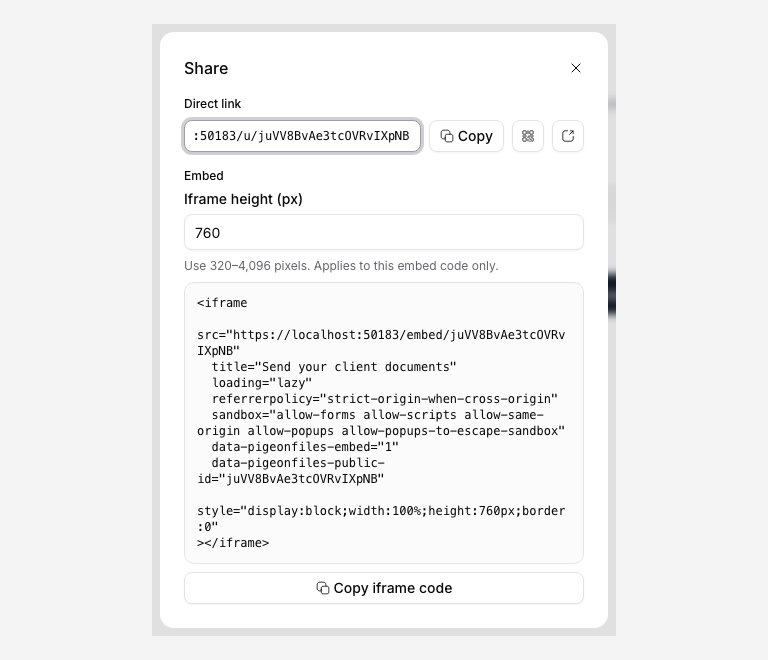
The screenshot uses a demonstration URL. Copy the generated link or code from your own page.
WordPress
Install the PigeonFiles plugin, then:
- Open PigeonFiles in the WordPress admin sidebar.
- Click Connect PigeonFiles and approve the connection in the new tab.
- Add PigeonFiles Upload Page in Gutenberg, Elementor, or Divi 5.
- Search for a published upload page and select it.
- Set its accessible title, height, and loading behavior, then publish the WordPress page.
Creating upload pages, managing submissions, and changing workspace settings still happens in PigeonFiles.
Framer
Open the PigeonFiles plugin in Framer, then:
- Connect your PigeonFiles workspace.
- Search for and select a published upload page.
- Click Insert page. If a PigeonFiles component is selected, the button changes to Replace selected.
- Use Framer's property panel to change the accessible title, automatic or fixed height, and loading behavior.
- Preview each breakpoint before publishing.
The plugin inserts a PigeonFiles Code Component. You do not need to create or edit a code file.
Webflow
Open the PigeonFiles app in the Webflow Designer, then:
- Connect your PigeonFiles workspace.
- Select the container that should receive the upload page.
- Search for and select a published upload page.
- Click Insert upload page.
- To change it later, select the PigeonFiles iframe on the canvas. You can replace the page or change its accessible title, height, and loading behavior from the app panel.
Wix
Install PigeonFiles on the Wix site, then:
- Open the PigeonFiles dashboard page and connect your workspace.
- Open the Wix editor and select Add Elements.
- Choose App Widgets, then add PigeonFiles Upload Page.
- Open the widget's Settings panel.
- Search for a published page, choose it, and adjust its accessible title, height behavior, and loading behavior.
Squarespace
Squarespace does not currently provide a public editor extension that can add a PigeonFiles-owned block. Use a Code block:
- Enable the upload page in PigeonFiles.
- Open its Share panel and copy the iframe code.
- In Squarespace, edit the destination page and click Add Block.
- Choose Code, set the block to HTML, and paste the iframe code.
- Resize the block in Fluid Engine and check the separate mobile layout.
- Preview the site, submit a small test file, and confirm the submission in PigeonFiles.
Squarespace requires a plan that supports iframe code in Code blocks. If the plan does not support it, link a button to the hosted upload-page URL instead.
Other websites: iframe embed
Use the iframe when your platform is not listed above. It is isolated from the rest of the page, so the website's CSS cannot accidentally change the upload form.
- Enable the upload page.
- Open Share and find the iframe code under Embed.
- Copy the generated code. Its title comes from your upload page; keep a meaningful accessible title if you edit the snippet.
- Paste it into the website's HTML or Code block.
- Adjust the iframe height if the form is clipped.
The generated code follows this structure:
<iframe
  src="https://app.pigeonfiles.com/embed/AbCdEfGhIjKlMnOpQrStu"
  title="Upload documents"
  loading="lazy"
  referrerpolicy="strict-origin-when-cross-origin"
  sandbox="allow-forms allow-scripts allow-same-origin allow-popups allow-popups-to-escape-sandbox"
  data-pigeonfiles-embed="1"
  data-pigeonfiles-public-id="AbCdEfGhIjKlMnOpQrStu"
  style="display:block;width:100%;height:760px;border:0"
></iframe>
Always copy the snippet from PigeonFiles rather than typing the public ID yourself.
Advanced websites: JavaScript embed
The JavaScript embed renders the upload page inline. Use it only when you need styling or layout control that an iframe cannot provide.
Before copying the code:
- Open Settings > Advanced > Inline JavaScript embeds.
- Enable JavaScript embeds.
- Add the website's exact origin, such as
https://www.example.com, to the allowed-origin list.
PigeonFiles then provides a custom element and module script:
<pigeonfiles-upload-page public-id="AbCdEfGhIjKlMnOpQrStu"></pigeonfiles-upload-page>
<script type="module" src="https://app.pigeonfiles.com/pigeonfiles-upload.js"></script>
The JavaScript option is not required by the WordPress, Framer, Webflow, or Wix integrations.
Test before publishing
For every platform:
- Check the editor preview.
- Check the website preview at desktop and mobile widths.
- Publish to a private or staging URL.
- Complete all required fields and upload a small test file.
- Confirm that the submission appears in PigeonFiles and the file arrives in the connected storage destination.
- Check keyboard navigation from the page into the upload form.
Troubleshooting
The page is missing from the picker. Enable it in PigeonFiles, check the connected workspace, then refresh the plugin or app panel.
The connection expired. Reconnect the website builder. Existing public upload pages remain embedded and continue to work.
The bottom of the form is clipped. Increase the fixed or minimum height. Native Framer, Wix, and WordPress placements also support automatic height.
The JavaScript embed is blocked. Confirm that JavaScript embeds are enabled and that the website's exact origin is allowed. Origins include the scheme and subdomain, so https://example.com and https://www.example.com are different.
The iframe does not work in Squarespace. Confirm that the current Squarespace plan supports iframe code in Code blocks. Otherwise, use a button linked to the hosted upload page.
Frequently asked questions
Do files pass through my website platform?
No. The upload page sends files directly to the storage destination connected to PigeonFiles. WordPress, Framer, Webflow, Wix, and Squarespace do not receive the file data.
Does an embedded page work on mobile?
Yes. PigeonFiles upload pages are responsive. Preview the surrounding website layout on desktop and mobile before publishing.
What if my website platform blocks iframes?
Add a button that opens the hosted upload-page link. The uploader gets the same form in a full-page view.