Open an upload page and click Add item to add a question, file upload, or explanatory text. Use the field’s settings button to adjust its rules.
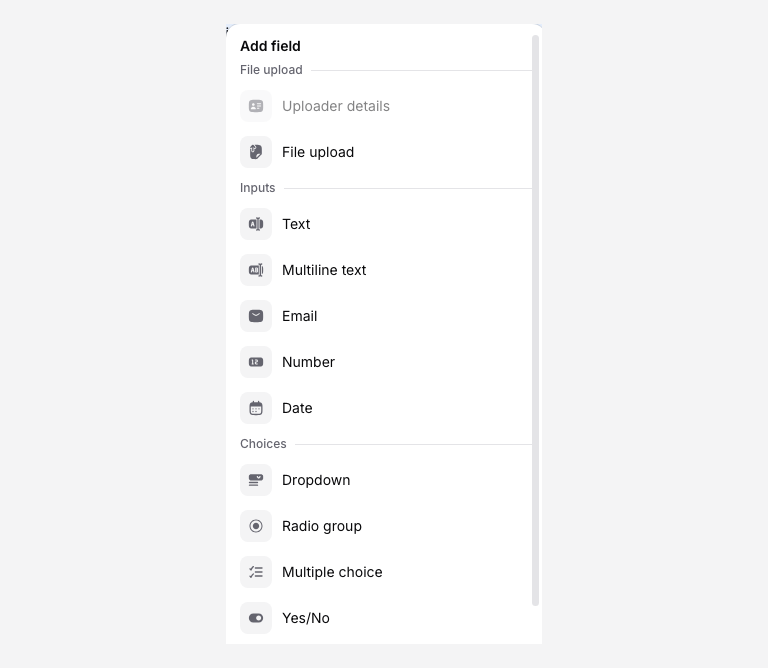
Choose a field
| Field | Use it for |
|---|---|
| Uploader details | The sender’s name and optional email identity. |
| File upload | One or more files, with count, size, type, and destination settings. |
| Text or text area | A short reference or longer notes. |
| Email, number, or date | A value with the matching validation. |
| Select or radio group | One choice from a consistent option list. |
| Multiple choice | More than one selected option. |
| Yes/No or checkbox | A decision or acknowledgment. |
| Read-only text | Instructions that do not collect an answer. |
Use Uploader details when you want the sender identified in the submission’s uploader summary. A separate text or email question remains an answer field. The page allows one Uploader details field; enable its email setting if you need that address.
Configure a question
Give it a label that names the answer you need. Add help text or a placeholder if an example removes ambiguity. In field settings, choose whether it is required or optional. Add choice options before using a select, radio, or multiple-choice question.
Use the field’s actions menu to change its order or duplicate it where available. Conditional rules need their source question above the dependent field.
Configure file uploads
Open the file field’s settings and review the maximum file count, maximum size, and accepted types. The limit applies to that field; explain the requirements in its visible instructions. Changing a filename extension does not convert a file into another format.
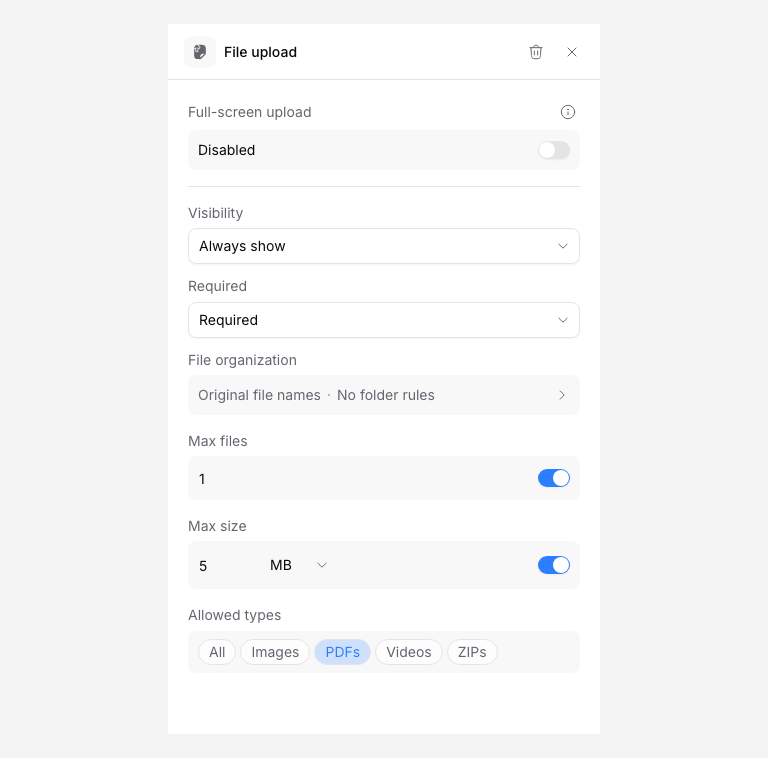
Choose a destination on the file field itself. Use separate file fields for categories that need different instructions or destinations. Free includes one file field per page. Solo and above allow more fields; different destinations per field require Pro or Agency.
Keep upload size limits and AI processing limits separate. A file can reach storage while AI processing is skipped or fails.
Preview and save
Switch to Preview, try the required questions and invalid values, and check the Success content. Preview does not prove delivery to a storage provider. Complete a small upload through the shared link to test delivery.
Click Save changes. On an enabled page this affects the live form; on a disabled page, enable it when ready. See page availability.