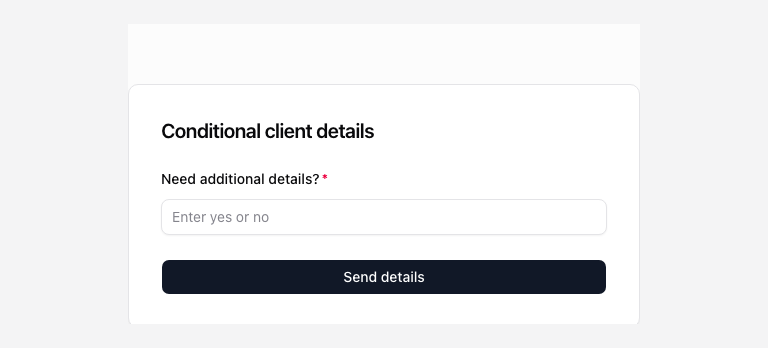
Use conditional rules when an earlier answer determines which question an uploader needs next. Pro and Agency include conditional logic.
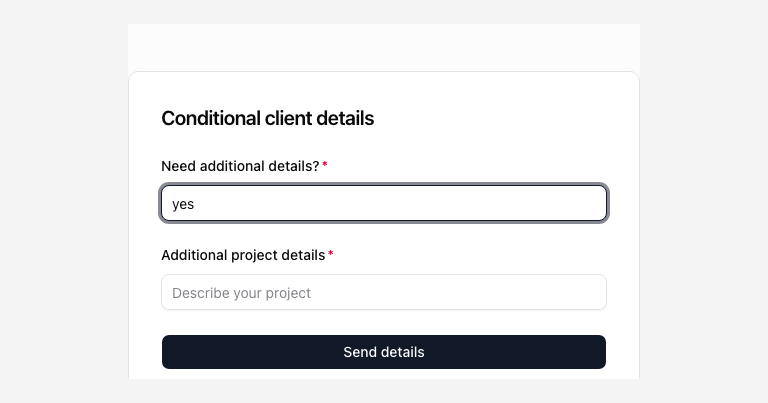
For example, ask whether extra project details are needed, then show and require a details question when the answer matches your rule.
Add a visibility rule
- Add the question that supplies the answer.
- Place the dependent question below it.
- Open the dependent field’s settings.
- Change its visibility from Always show to Show when.
- Choose the earlier field, an operator, and the value to match.
- Choose whether all conditions or any condition must match if you add several.
The available operators depend on the source field: text matching, selected options, numbers, dates, and whether a file is present need different comparisons. Choose a valid option from the control rather than typing an obsolete choice label.
Require an answer under a condition
Use the field’s Required when setting to define when an answer is mandatory. Visibility and requiredness are separate rules. Review both so you do not display an optional question when the workflow needs an answer.
Move the source question above the target if the editor says Add a field above this one to continue. Review dependent rules after changing or removing a source question or choice.
Test each branch
In Preview, enter an answer that should reveal the field, then one that should hide it. Submit with a missing conditional answer to check the required validation. Repeat for each combination you expect uploaders to use.
Save the page only after the branches behave as intended. Save changes updates an enabled page. Disable it first if you need to prepare the change away from live intake.
A rule does not behave as expected
Check the field identity, order, chosen operator, match value, and whether the rule uses all or any conditions. A field with the same label is not the same field after you delete and recreate it.
Conditional visibility helps present a form. Do not use it as authorization for sensitive information. Keep secrets and privileged identifiers out of the form configuration.
For file destinations based on answers, use the routing guide as well as the field-visibility rule.
Compare both branches
This example asks for project details only after the uploader enters “yes.” Check both the hidden and visible states, including the required-field behavior.