Open an upload page’s Appearance settings to choose the public form language and brand style. Use Success to edit what the uploader sees after submission.
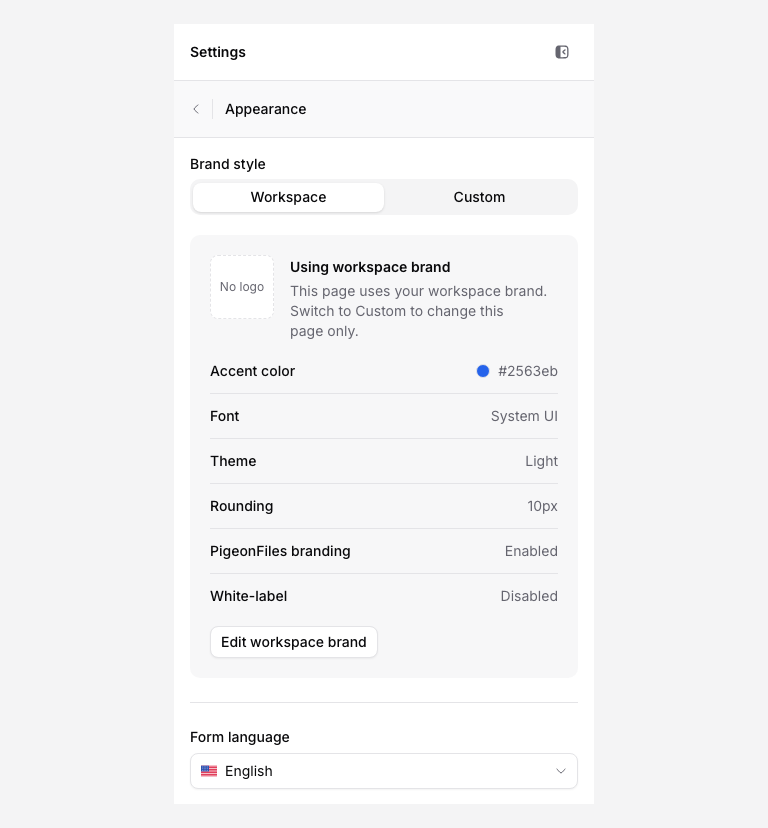
Use the workspace brand
Choose Workspace under Brand style to use shared workspace branding. Review the logo, colors, and typeface in Settings > Workspace, or use Edit workspace brand from the page editor.
A workspace-brand edit can affect other pages that use that brand. The workspace name used inside the app is separate from the public brand name shown to uploaders.
Customize one page
Choose Custom to change the page’s appearance without replacing the workspace brand. Pick the logo and supported colors or typography controls shown in the panel. Review a logo before reusing it from saved logos.
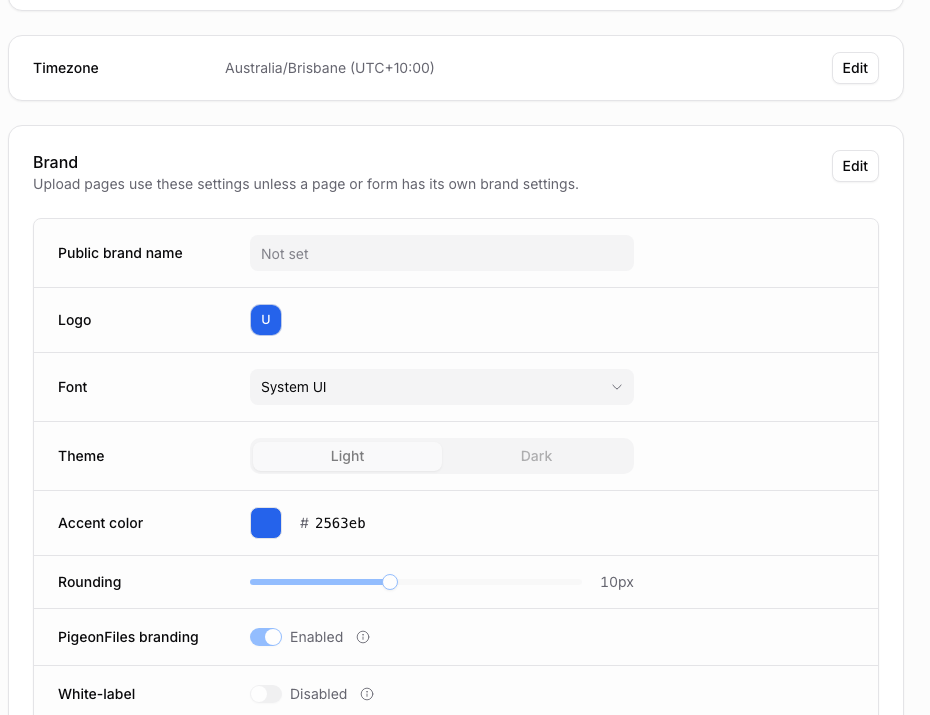
The plan controls some branding options. Removing ordinary PigeonFiles attribution is available on supported paid plans; Agency adds white-label behavior, public brand metadata, custom upload domains, and sender domains. Check the upgrade message on the specific control before choosing a plan.
For Agency white-label settings, add a public brand name before enabling White-label. Do not claim that removing attribution changes storage permissions, security certifications, or the software that handles an upload.
Choose the form language
Use Form language to set the uploader-facing interface language. Your personal app language in Profile is separate. Review your own question labels and instructions too; changing interface language does not rewrite the text you authored.
Set the success message
Choose the Success tab and write the title and message the uploader should see after completing the form. Say what happens next, such as “Our team will review your documents within two working days,” only if your team can meet that promise.
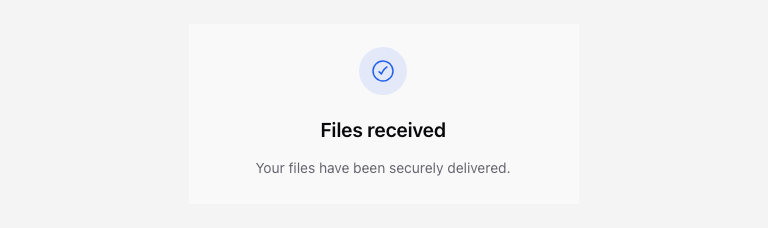
Do not treat that message as proof that a person has reviewed the documents or that an optional automation finished. Check Submissions for processing outcomes.
Check the result
Preview at a narrow width as well as desktop. Check contrast, logo legibility, long titles, field labels, and success content. Save the changes; an enabled page updates on Save changes. Open its shared link to confirm the public result.