Use answers such as client name and document type to name the folders beneath a file field’s chosen destination. Pro and Agency support dynamic folder and filename rules.
Before you start
You need:
- An upload page with at least one form field whose answer can name a folder, such as client name or document type.
- A connected storage destination, Google Drive, Dropbox, or OneDrive.
- A plan that includes dynamic folder rules.
Common folder routing patterns
Choose a structure based on how you expect to find the files later. Each routing rule combines fixed folder names with answers from the upload page.
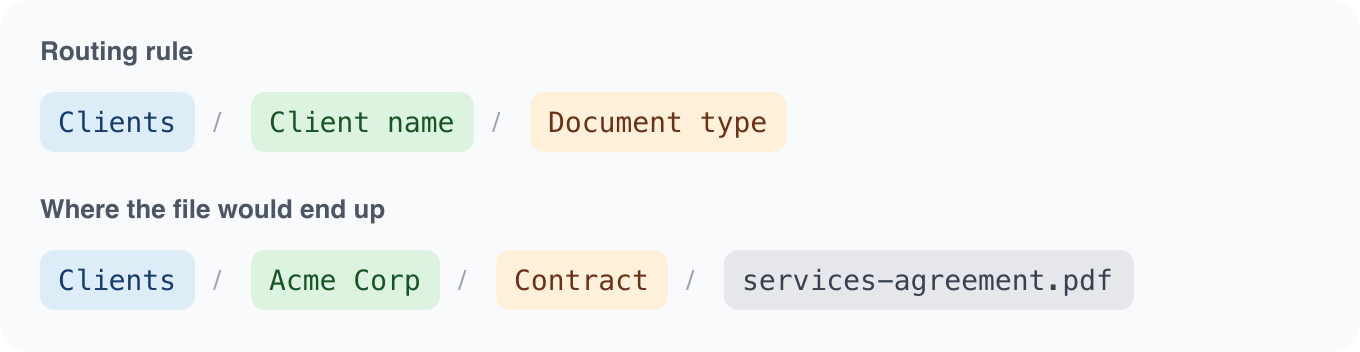
Client documents
Separate each client's uploads by document type.
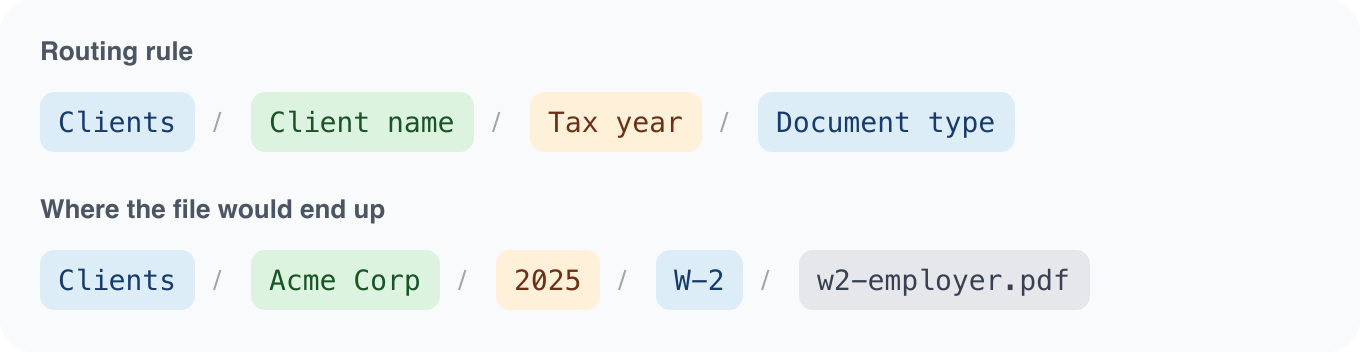
Tax documents
Add a tax year between the client and document type for recurring annual intake.
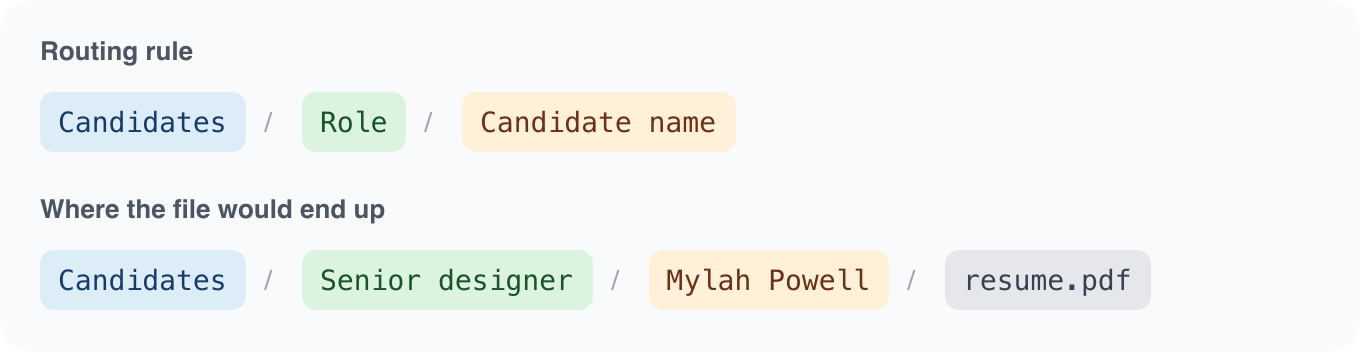
Candidate documents
Start with the open role, then keep each candidate's files together.
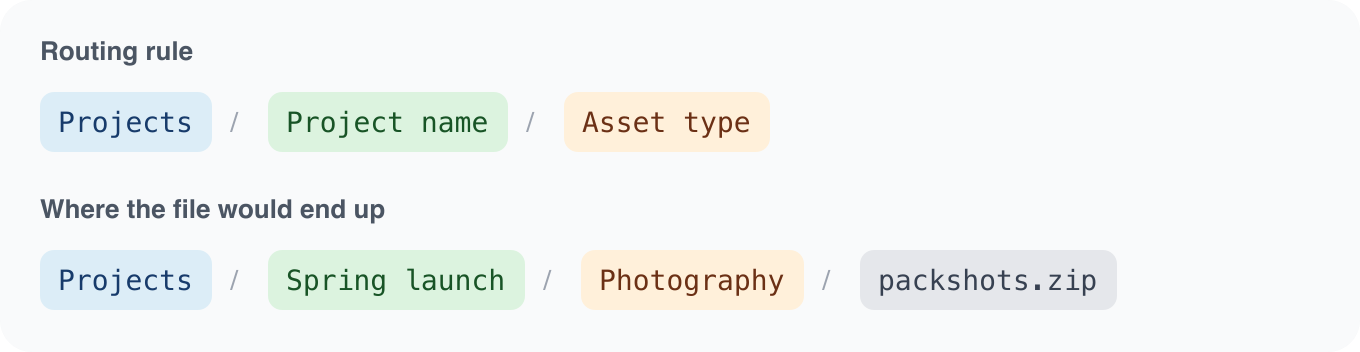
Project assets
Separate project files by project name and asset type.
Steps
-
Decide the folder structure you want. Start with one of the common patterns above or sketch a hierarchy that matches how your team browses storage.
-
Add fields that supply routing values. Your upload page needs fields whose answers populate the folder path. If you want
/Clients/[Client Name]/[Document Type], add a "Client Name" field and a "Document Type" field.Make routing fields required. A blank routing value can produce an unexpected or missing folder name.
-
Open the file field card. In the upload page editor, select the file upload field you want to configure.
-
Choose the base storage destination. In the file field card, choose the connected storage account and destination folder. This is the root that the routing path extends from.
-
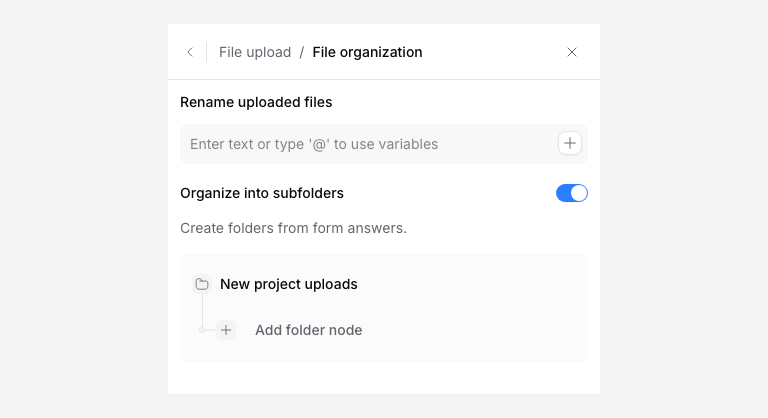
Turn on folder organization. Open File organization, enable Organize into subfolders, and add folder levels from field answers. For example, add levels for client name and document type to create
/Clients/[Client Name]/[Document Type]. -
Rename uploaded files (optional). If you want uploaded files renamed based on field values, use Rename uploaded files and add the field values you need. For example:
[Client Name] - [Document Type]. -
Save the page. Click Save changes. This updates an enabled page. If the page is disabled, enable it when ready.
-
Test with known field values. Open the upload page, fill in the fields with a recognizable name and type, attach a test file, and submit.
-
Verify the folder path in storage. Open your Google Drive, Dropbox, or OneDrive and confirm the file landed in the expected subfolder. For example, submitting "Acme Corp" and "Bank Statement" should create
/Clients/Acme Corp/Bank Statement/in your storage. -
Check the submission record. Verify that PigeonFiles recorded the correct destination path and delivery status.
Use conditional folder names
For a folder level that depends on an answer, open that level’s variable menu and choose Conditional routing. Build the condition tree, set the resulting folder names for its branches, and click Done. For example, an answer of “Contract” can select a Contracts folder while the other branch selects General documents.
Test each branch with known answers, including an empty or unexpected answer if the question permits one. The conditional result supplies a folder level beneath the chosen destination; it is separate from showing or hiding form questions. Review each file field’s settings if several fields collect files.
Folder reuse and filename collisions
PigeonFiles can reuse folders it created for the same routing structure. A pre-existing folder with the same visible name is not proof that PigeonFiles will select it. Choose an existing base folder through the destination picker, then test the generated path.
A provider may assign a different stored name to avoid a collision. Compare the submission’s file reference with the destination before assuming a same-named file was replaced. If you need to replace a document, agree on a version or replacement procedure with your team.
Troubleshooting
Files land in the base folder instead of a subfolder. Check that Organize into subfolders is enabled and the folder structure includes the field answers you want to use and that those fields are filled in during the test upload.
Blank or unexpected folder names. If a routing field was left blank by the uploader, the folder segment may be missing or empty. Make the field required to prevent this.
Folder access errors. PigeonFiles uses the connected storage account's permissions. If the account cannot create folders in the destination, routing will fail. Check that the connected account has write access.
Storage provider rejects folder name. Some characters are not allowed in folder or file names (e.g., \ : * ? " < > |). If a field answer contains these characters, the storage provider may reject the folder creation.
Dynamic routing unavailable. Dynamic folder rules and file naming rules require a plan that includes advanced routing features. Manual destination selection (choosing a base folder) is available across plans.
Next steps
Frequently asked questions
What happens if a field value is blank?
If the field used in the routing path is blank or empty, the folder name for that segment may be missing or use a fallback value. Make routing fields required to avoid unexpected folder structures.
Can I route different file fields to different folders?
Yes, on Pro and Agency. Review each file field’s destination and organization rules; a setting on one field does not configure the others.