Open the link your recipient sent you. You do not need a PigeonFiles account to submit through an upload page. The recipient chooses the questions, file requirements, and destination.
Send your files
- Enter the page password if prompted. Ask the recipient for it; your Google or Microsoft password will not unlock the page.
- Read the instructions and complete the required questions. Some questions appear after you choose an answer.
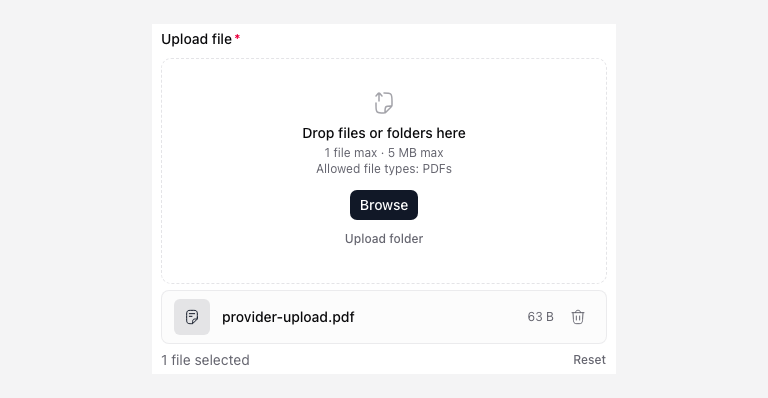
- Select your files, or use the folder option if the page offers it. Check the file count, types, and size limits shown on the page.
- Review the selected files and submit. Keep the tab open while the upload runs.
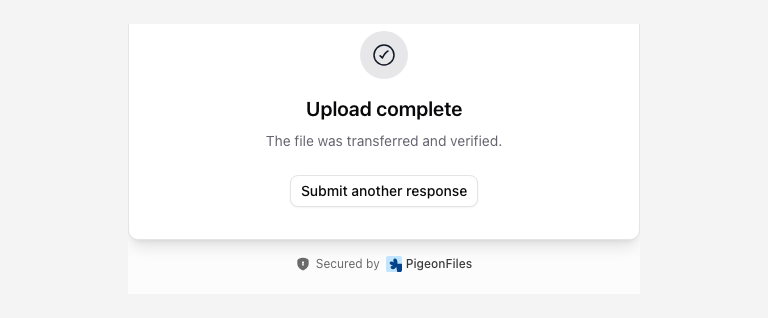
- Wait for the completion message. Contact the recipient if you need confirmation that they reviewed the files.
Your answers help the recipient identify and organize the submission. Use the client reference or document category they requested. A filename alone may not tell them which client sent it.
After submitting
A success message confirms the outcome shown on the page. It does not mean the recipient has checked your documents. Do not depend on an uploader confirmation email; that option is not connected to the current email delivery process.
For a correction or replacement, contact the recipient before sending another copy. They control the storage destination and can tell you how to label the replacement.
For an unavailable page, rejected file, interrupted upload, or uncertain result, follow Fix upload problems.