Define the values you need from a document, such as an invoice number, date, or amount. PigeonFiles adds the extraction results to the submission for review and supported automations.
What AI processing does
When you enable AI processing on a file upload field, PigeonFiles reads the uploaded files and extracts the columns you define. The extraction runs after upload, then the extracted values become available in submission records and connected automation data where configured.
Extracted values can feed into:
- Google Sheets rows (as additional columns).
- Zapier and Make submission payloads.
- Webhook payloads.
- Submission records visible in PigeonFiles.
Review important extracted values against the original file before using them for financial, legal, or identity decisions.
Steps
-
Open the upload page editor. Go to your upload page and open the editor.
-
Open Automation settings. Navigate to Settings > Automation in the upload page editor.
-
Select AI processing. Find the AI processing section. It shows which file upload fields are available for AI extraction.
-
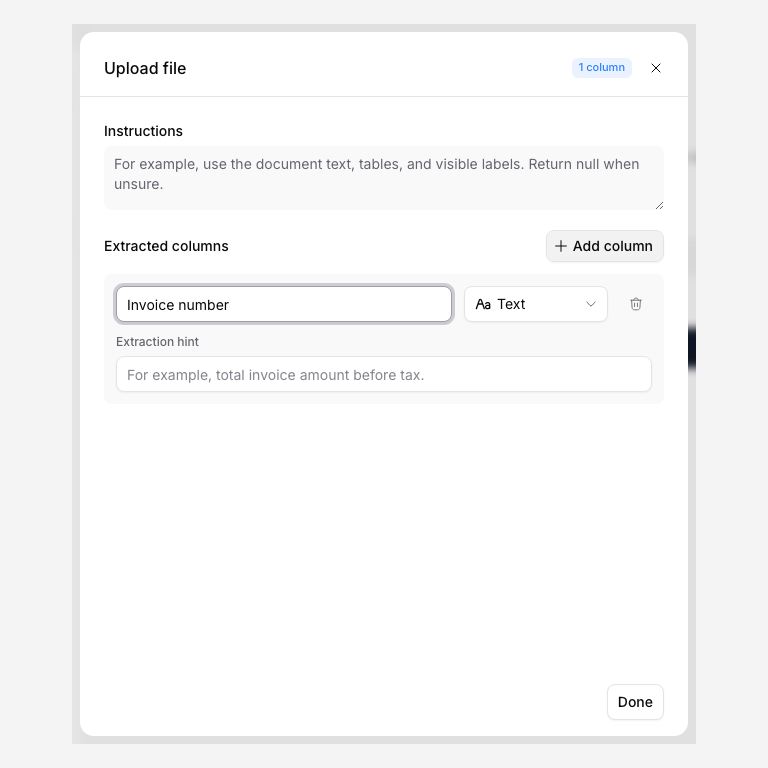
Configure a file field. Click on a file upload field to open its AI processing configuration.
-
Add extraction columns. For each piece of information you want to extract from uploaded files, add a column:
- Label: the column name, like "Document type," "Invoice amount," or "Tax year."
- Column type: choose Text, Number, Date, Yes / no, Currency, Email, or URL depending on the expected value.
- Extraction hint (optional): guidance for the AI about where to find the value or how to interpret it. For example: "Use the document text, tables, and visible labels. Return null when unsure."
-
Add instructions (optional). Use the instructions field to give the AI general guidance about the documents it will process on this upload page. This helps when the documents have a consistent format or when you need specific extraction behavior.
-
Apply and save the configuration. Click Done, then Save changes. An enabled page uses the saved settings; enable a disabled page when ready. The AI processing status on the automation hub updates to show the configured file fields and columns, such as "1 file field, 3 columns."
-
Test with a real upload. Submit a document through the upload page. After the submission is processed, open the submission record in PigeonFiles and check that the extracted values appear correctly.
Example: extracting invoice details
For a bookkeeping upload page that collects invoices from clients:
| Column label | Type | Description |
|---|---|---|
| Vendor name | Text | The company or person who issued the invoice |
| Invoice number | Text | The invoice reference number |
| Invoice amount | Number | The total amount due |
| Invoice date | Date | The date the invoice was issued |
When a client uploads an invoice PDF, AI processing extracts these four values. They appear in the submission record and can flow into Google Sheets columns or Zapier/Make payloads.
How extracted values reach your workflow
After processing completes, check the extracted values in each configured output:
- Submission records in PigeonFiles show the extracted columns alongside the uploader's field answers.
- Google Sheets rows include extraction values as additional columns if your Sheet connection is active.
- Zapier and Make triggers include extraction values as mappable fields.
- Webhook payloads include extraction values in the submission data.
Troubleshooting
Extraction values are empty. The AI may not have found the expected information in the uploaded file. Check that the file is a supported format and that the column descriptions are specific enough to guide extraction.
Extraction values are inaccurate. Refine the column descriptions with more specific guidance. For example, instead of "amount," try "the total amount due on the invoice, found near the bottom of the first page."
No columns showing. Confirm that you added at least one extraction column to the file field's AI processing configuration and saved the changes.
AI processing not running. Check that the published file field has at least one configured column and the workspace has available credits. See AI document processing and credits for supported formats, limits, and skipped processing.
Next steps
- Automations and integrations.
- Send submissions to Google Sheets, log submissions and AI extraction values as spreadsheet rows.
Frequently asked questions
Does AI processing change my uploaded files?
No. AI processing reads the uploaded files and extracts the columns you configure. The original files are delivered to your connected storage unchanged.
Can I use AI extraction values in Google Sheets or Zapier?
Yes. Extracted values can appear as columns in your Google Sheets log and as fields in Zapier and Make submission payloads.
What file types does AI processing support?
AI processing is designed for common document and image formats. PDF, JPEG, PNG, and WebP are supported, up to 50 MB per file, subject to processing input limits. See AI document processing and credits.