Connect a Google Sheet to keep a log of incoming submissions, answers, and file references.
What Google Sheets logging does
When you connect a Google Sheet to an upload page, each new submission creates a row in the spreadsheet. Rows can include:
- Uploader name and email (if collected on the page).
- Field answers.
- Submission timestamp and system columns.
- File links (if enabled).
This gives your team a running intake log they can filter, sort, and share without opening PigeonFiles.
Sheets is for tracking and reporting. The actual files go to your connected storage destination, Google Drive, Dropbox, or OneDrive.
Steps
-
Open Automation. In the upload page editor, open Settings > Automation.
-
Select Google Sheets. Choose Google Sheets from the automation list.
-
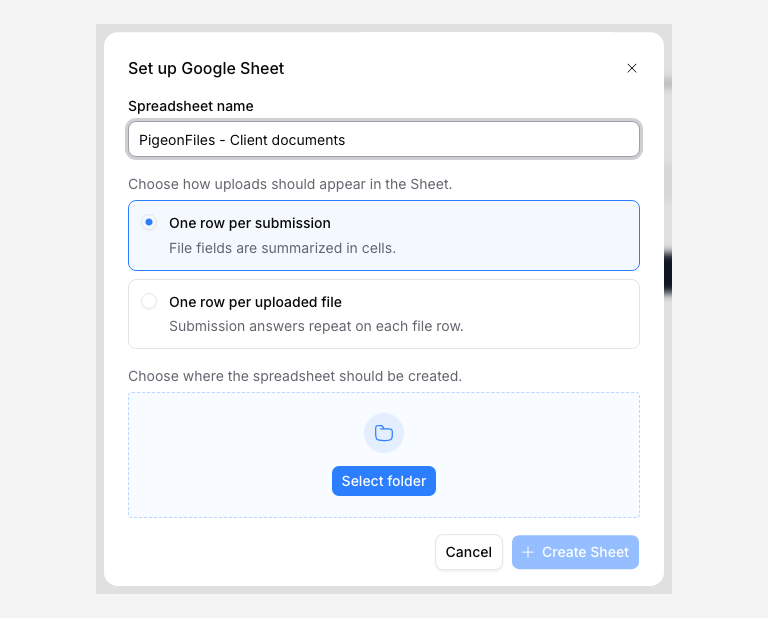
Start Sheet setup. Click Set up Sheet. If no Google account is connected, click Connect Google and authorize the Google account that should own the spreadsheet. This can be the same account used for storage or a different one.
-
Name the spreadsheet. Fill in Spreadsheet name with a clear name tied to the upload page, like "Client Onboarding Submissions" or "Tax Document Intake Log."
-
Choose the row mode. Choose One row per submission or One row per uploaded file.
- One row per submission. File field details are summarized in cells. Best for tracking submissions at a glance.
- One row per uploaded file. Submission answers repeat on each file row. Best when you need a file-level checklist.
-
Choose a folder for the spreadsheet. Use Select folder to select where PigeonFiles should create the spreadsheet in Google Drive.
-
Backfill existing submissions (optional). If the upload page already has submissions before you connect the Sheet, keep Include existing submissions selected to import completed submissions. Submissions still transferring files or running AI extraction are added when that work finishes. Leaving this off does not prevent new submissions from syncing.
-
Create the Sheet. Click Create Sheet. PigeonFiles creates the spreadsheet with the header row based on your upload page fields.
-
Submit a test upload. Open the upload page, fill in the fields, attach a file, and submit.
-
Open the Sheet and verify. Use Open Sheet or open the spreadsheet in Google Drive. Check that a new row appeared with the correct field answers, timestamp, and file link.
What rows look like
Submission mode
| Client Name | Document Type | Submitted | Files | File Links | |
|---|---|---|---|---|---|
| Acme Corp | Bank Statement | anastasia@acme.com | 2026-06-21 | 2 | link1, link2 |
| Beta LLC | Invoice | kyle@beta.com | 2026-06-21 | 1 | link1 |
File mode
| Client Name | Document Type | Submitted | File Name | File Link | |
|---|---|---|---|---|---|
| Acme Corp | Bank Statement | anastasia@acme.com | 2026-06-21 | acme-q2-statement.pdf | link |
| Acme Corp | Bank Statement | anastasia@acme.com | 2026-06-21 | acme-q2-backup.pdf | link |
| Beta LLC | Invoice | kyle@beta.com | 2026-06-21 | beta-invoice-0621.pdf | link |
Columns follow your upload page
New questions and AI extraction outputs get columns automatically when their first submission arrives. You can move or hide whole columns; PigeonFiles continues writing to the matching fields. Duplicate headings do not mix up answers.
Renaming a question updates its generated heading. If you have already given the column a custom heading in Google Sheets, your heading stays. Removing a question keeps its old column and historical values. Pending submissions from the earlier page version can still fill that column. Adding a new question with the same name creates a separate column.
If you delete a column that an upcoming submission needs, PigeonFiles creates it again at the right. Previously delivered rows are not replayed into the replacement column.
Change row mode
Open Automation > Google Sheets, choose Change row mode, then Create tab. PigeonFiles creates a new tab in the same spreadsheet and sends future submissions there. The previous tab and its history stay in place.
Include existing submissions is off for this change. Select it if you also want to import completed submissions into the new tab.
Setup lists Google accounts you connected. A spreadsheet connected by a teammate remains visible, but changes requiring their Google authorization must be made by that account's owner.
Troubleshooting
Rows aren't appearing. Check Automation > Google Sheets on the upload page. If delivery shows an error, the Google account may need reauthorization.
Missing columns. New field columns appear when a submission containing those fields is delivered. Check that the page changes are published and that the submission has finished processing.
Google authorization expired. Use Reconnect Google from Automation > Google Sheets when it appears. Sheets delivery will resume after reauthorization.
Spreadsheet vs. storage. The Sheet logs submission data and file links. The files themselves are in your connected storage destination, not in the spreadsheet.
Next steps
Frequently asked questions
Does Google Sheets store the uploaded files?
No. Google Sheets logs the submission data, field answers, timestamps, file links, and delivery status. The actual files go to your connected storage destination (Google Drive, Dropbox, or OneDrive).
Can I choose between one row per submission or one row per file?
Yes. Submission mode creates one row per submission with file details summarized. File mode creates one row per uploaded file with submission answers repeated on each row.