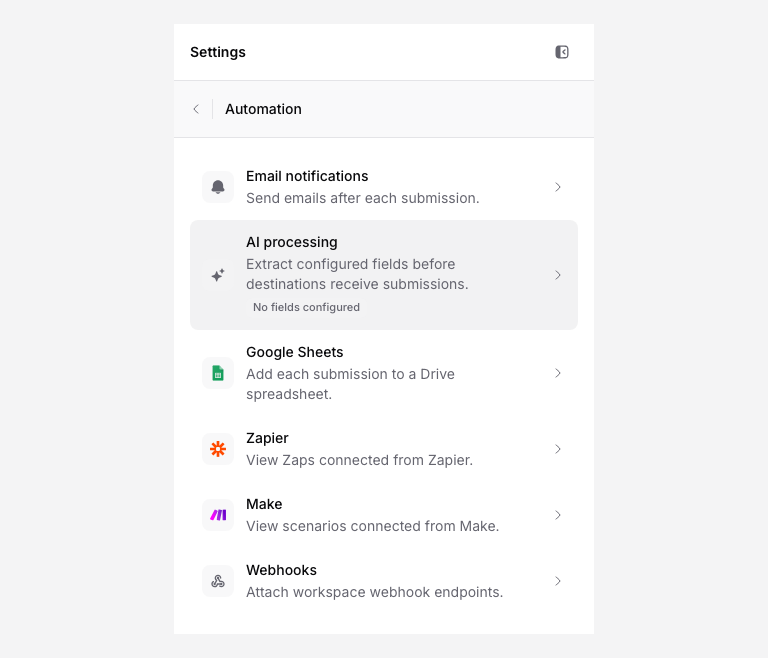
Open Automation in an upload page to choose what should happen after a submission. Start with the output you need, then test that output with a sample.
| Goal | Guide | Plan or access |
|---|---|---|
| Notify teammates by email | Team email notifications | Configurable recipients on Solo and above. |
| Extract values from documents | Configure AI processing | Available credits and supported files. |
| Keep a spreadsheet log | Google Sheets | Pro or Agency and Google authorization. |
| Create records or tasks in another app | Zapier or Make | Pro or Agency; an enabled workflow in that service. |
| Receive signed submission events | Webhooks | Pro or Agency and a receiving endpoint. |
| Read records through your own software | API tokens | Pro or Agency and the required scopes. |
| Ask an AI assistant to work with pages | Connect an AI client with MCP | A supported client and approved workspace permissions. |
Check the full result
A successful file upload and a successful automation are separate outcomes. Inspect the submission, then check the Sheet, recipient, or receiving service. File links and metadata in a payload do not grant that service access to your storage account.
The uploader-confirmation and custom email-template controls are not connected to current submission email delivery. Use the Success message or a tested external workflow if you need an acknowledgment.
Build a workflow
Use the recipes for CRM records, tasks, team-channel notifications, or a document checklist.
Use stable submission IDs to prevent duplicate downstream work. Review mappings after changing questions or extraction columns. For a missing result, follow Troubleshoot automations.