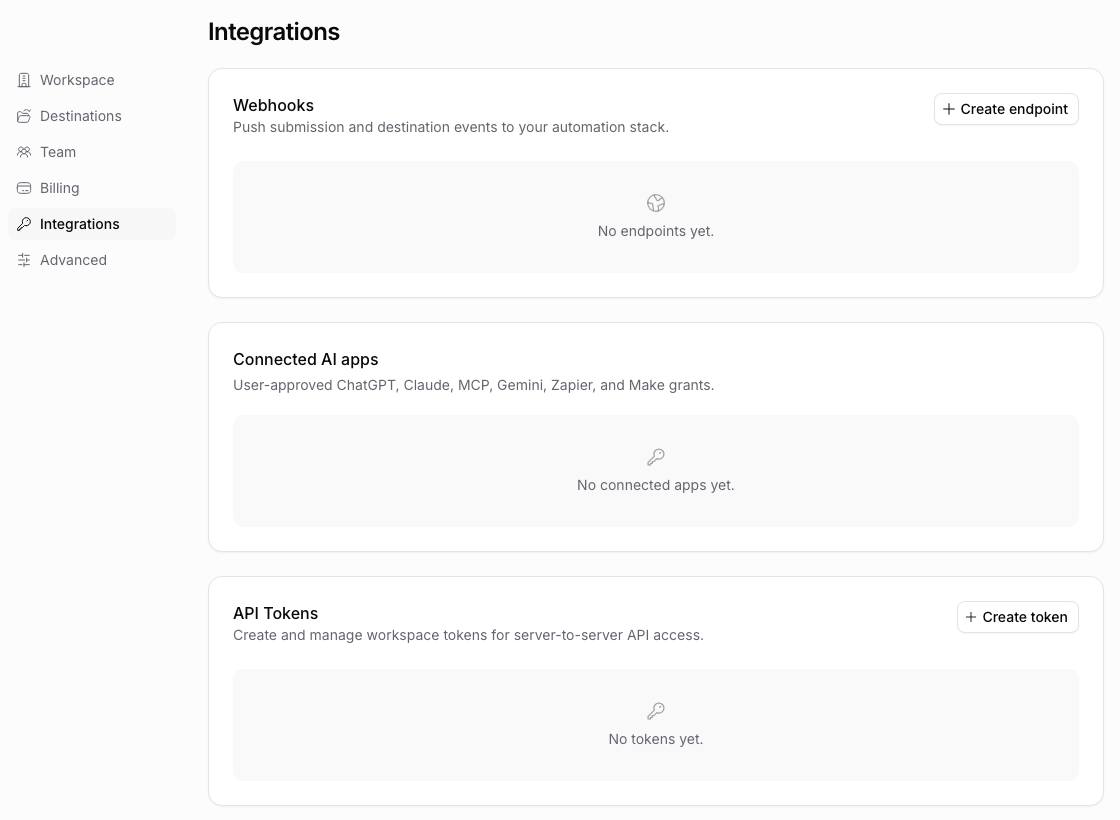
Connect a supported AI assistant through PigeonFiles’ remote MCP server. Authorize the workspace and permissions it needs, then ask it to inspect records or help create and update an upload page.
What you can ask your AI to do
You can ask your AI assistant to create an upload page, add or change questions, choose from storage folders you have already connected, update page settings, and publish the page when it is ready. It can also list your upload pages and review submission records when you give it permission.
The connection uses Model Context Protocol (MCP), a standard that lets an AI assistant work with tools in another app. PigeonFiles asks you to sign in, choose a workspace, and approve what the AI is allowed to do.
Check that your AI product supports the connection
Check your AI product’s current support for remote MCP, OAuth, and tools that change data. A connection that only supports reading cannot create or publish pages. Your workspace administrator may also need to allow custom connections.
Use the current setup instructions for ChatGPT, Claude, or Gemini CLI. Product plans and connection settings can change.
Steps
-
Open your AI assistant. Open ChatGPT, Claude, Gemini, or another supported AI product.
-
Add a connection. Look for connections, connectors, tools, or MCP servers in the AI product's settings. Add a remote server or custom connector.
-
Name the server. Enter
PigeonFilesas the server name. -
Enter the server URL. Paste the PigeonFiles MCP server URL:
https://app.pigeonfiles.com/api/mcp
-
Choose OAuth authentication. If the client asks for an authentication method, select OAuth.
-
Authorize PigeonFiles. The client opens a PigeonFiles authorization flow. Sign in with your PigeonFiles account.
-
Choose a workspace. Select which workspace the AI client can access. Each connection is scoped to one workspace.
-
Approve scopes. Review and approve the tool permissions the client is requesting. Only approved scopes will be available to the client.
-
Confirm the connection. After authorization completes, the AI client can list and call PigeonFiles tools for the selected workspace.
Available tools
Once connected, the AI client can use these tools:
| Tool | What it does |
|---|---|
pigeonfiles_get_workspace_summary |
Read workspace overview and settings |
pigeonfiles_list_upload_pages |
List all upload pages in the workspace |
pigeonfiles_get_upload_page |
Read a specific upload page's configuration |
pigeonfiles_get_upload_page_embed_code |
Get iframe embed code for an upload page. JavaScript embed code requires an explicit confirmation flag and enabled allowed origins. |
pigeonfiles_create_upload_page |
Create a new upload page |
pigeonfiles_update_upload_page |
Update an existing upload page |
pigeonfiles_publish_upload_page |
Publish a draft upload page |
pigeonfiles_list_submissions |
List submissions for an upload page |
pigeonfiles_get_submission |
Read a specific submission's details |
pigeonfiles_export_submissions_csv |
Export submission data as CSV |
pigeonfiles_list_storage_connections |
List connected storage accounts |
pigeonfiles_get_storage_connection |
Read a storage connection's details |
pigeonfiles_list_webhooks |
List webhook endpoints |
pigeonfiles_get_webhook |
Read a webhook endpoint's configuration |
pigeonfiles_get_submission_created_sample |
Get a sample submission.created webhook payload |
pigeonfiles_get_upload_page_automation_schema |
Read the automation configuration schema for an upload page |
The client can only use tools that match the scopes you approved during authorization.
Troubleshooting
Client cannot list tools. Disconnect and reconnect the server. Confirm that the OAuth authorization flow completed and you approved the requested scopes.
A specific tool is missing. The authorization grant may not include the scope for that tool. Revoke the connection and reconnect, approving the additional scope.
Tools return errors about the wrong workspace. Each connection is scoped to one workspace. If you need to access a different workspace, revoke the current grant and reconnect, choosing the correct workspace during authorization.
Client does not support remote MCP. Some AI clients only support local/stdio MCP servers. If your client does not have a "remote server" or "custom connector" option, it cannot connect to PigeonFiles through this method. Check your client's documentation for remote MCP support.
Publish fails. If pigeonfiles_publish_upload_page returns an error, the upload page may not be ready for publishing. Inspect the readiness output for missing fields, destinations, or configuration issues.
Next steps
- Create API token, access workspace data from scripts and custom integrations.
- Automations and integrations.
Frequently asked questions
Can I connect ChatGPT, Claude, or Gemini?
Yes, when the version and plan you use support remote MCP servers or custom connectors. The name of this setting varies between AI products, so check the current instructions for your AI assistant.
What can the AI client do?
The tool set includes reading workspace summaries, listing and managing upload pages, retrieving upload page embed code, reading and exporting submissions, inspecting storage connections and webhooks, and retrieving sample webhook payloads. The client can only use tools that match the scopes you approve during authorization.
Can the AI client access my uploaded files?
The MCP tools expose workspace data such as metadata, submission records, and upload page configuration. They do not stream raw file contents through the MCP server. File access still depends on the links and permissions in your connected storage.