Create a scoped API token for a script or service that needs to read your workspace data. Choose the permissions and expiration before creating it.
What API tokens do
API tokens give external scripts and tools scoped access to your PigeonFiles workspace. Each token is limited to specific permissions, so you control exactly what data the token can reach.
API access requires Pro or Agency and permission to manage workspace integrations.
Tokens are useful for building internal dashboards, syncing submission records to other systems, exporting data for reporting, or integrating PigeonFiles into a larger operational workflow.
Steps
-
Open Integrations. In your PigeonFiles workspace, go to Settings > Integrations.
-
Find the API Tokens section. Scroll to the API Tokens card.
-
Start token creation. Click Create token.
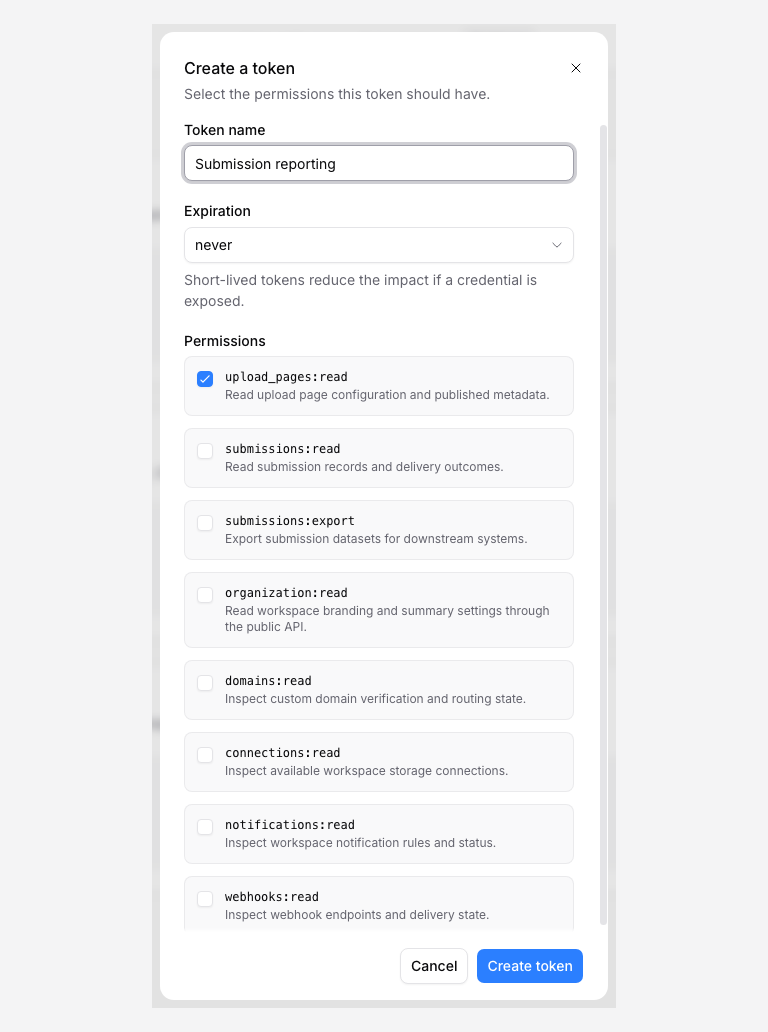
-
Name the token and choose an expiration. Enter a descriptive Token name so you can identify its consumer later. Under Expiration, choose Never, 30 days, 90 days, 1 year, or a custom date. Prefer a limited lifetime that suits the integration.
-
Select permissions. Choose the scopes this token should have access to:
Scope What it allows upload_pages:readRead upload page configuration and published metadata submissions:readRead submission records and delivery outcomes submissions:exportExport submission datasets for downstream systems organization:readRead workspace branding and summary settings domains:readInspect custom domain verification and routing state connections:readInspect available workspace storage connections notifications:readInspect workspace notification rules and status webhooks:readInspect webhook endpoints and delivery state Select only the scopes your integration needs. You can always create additional tokens with different scopes for different tools.
-
Create the token. Click Create token.
-
Copy the token immediately. PigeonFiles shows the full token once. Copy it now and store it securely, in a secrets manager, environment variable, or encrypted configuration file. The token will not be shown again after you close this dialog.
Using the token
Include the token in the Authorization header of your HTTP requests:
Authorization: Bearer pf_token_...
The token grants access to the workspace data matching its scopes. If a request targets data outside the token's scopes, the API returns an authorization error.
Token security
Store tokens securely. Treat API tokens like passwords. Do not commit them to version control, paste them in chat messages, or include them in client-side code.
Use narrow scopes. Create tokens with only the permissions your integration needs. A reporting script that reads submissions does not need connections:read or webhooks:read.
Rotate tokens periodically. If a token may have been exposed, revoke it immediately and create a replacement.
Revoke unused tokens. When an integration is retired or a team member who created a token leaves, revoke the token from Settings > Integrations.
Troubleshooting
"Unauthorized" response. Check that the token is in the Authorization header with the Bearer prefix, and that it has not expired or been revoked.
"Forbidden" response. Check the required scope, workspace, and current plan access. If you need a different scope, create a replacement token and update the intended integration.
Token lost. Tokens cannot be retrieved after creation. Revoke the lost token and create a new one with the same scopes.
Next steps
- Create a webhook endpoint, receive real-time events instead of polling the API.
- Automations and integrations.
- Connect an AI client with MCP, connect AI tools to your workspace through the MCP server.
Frequently asked questions
Can I see the token again after creating it?
No. The full token is shown once when you create it. Copy it immediately and store it securely. If you lose it, revoke the old token and create a new one.
What can I do with an API token?
Depending on the scopes you select, you can read upload page configurations, read submission records, export submissions as CSV, inspect storage connections, inspect notification rules, and inspect webhook endpoints. The API token scopes exposed in the workspace UI are read/export oriented.
How do I remove a token?
Go to Settings > Integrations, find the token in the API Tokens section, and revoke it. Any scripts or integrations using that token will immediately lose access.