Open Settings > Billing in the workspace you want to change. Owners and admins can manage billing; other members can view the billing information their role permits.
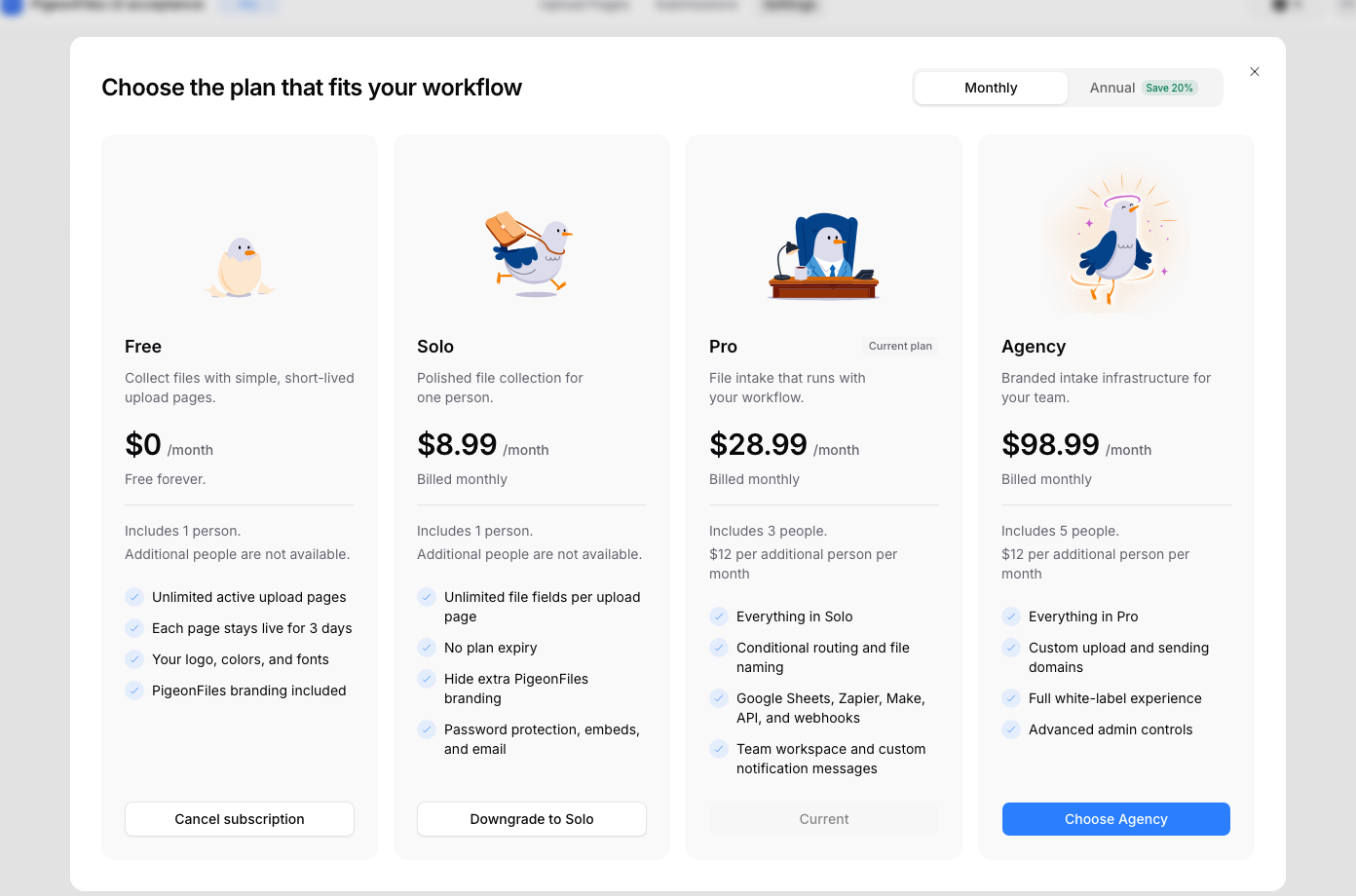
Choose a plan for your workflow
| Plan | Common reasons to choose it |
|---|---|
| Free | One-person file collection, one file field per page, and a three-day page availability window. |
| Solo | One-person work with more file fields, no plan-imposed page lifetime, embeds, password protection, QR codes, and configurable team email notifications. |
| Pro | Team work, conditional questions, advanced routing, multiple storage connections, Google Sheets, webhooks, API access, Zapier, and Make. Three included seats. |
| Agency | Pro features plus custom upload domains, sender domains, white-label options, and five included seats. Workspace activity needs separate activation. |
All plans include AI processing subject to credits and limits. Check the current plan card for price, currency, billing interval, and included capacity before accepting a change.
Review the change before paying
Choose Choose a plan or Change plan, then read the review screen. Check the amount due now, the recurring total, seat quantity, and when the change takes effect. Follow the timing shown for that change; an upgrade, downgrade, and cancellation can have different schedules.
If checkout closes or the result is uncertain, return to Billing and check the current plan and payment status before trying again. Avoid submitting another purchase while the first result is unresolved. Use the payment-method and invoice actions in Billing when available.
Manage team capacity
Pending invitations occupy capacity. Remove an unused invitation before buying a seat you do not need. Removing a teammate ends their access; reducing paid capacity is a separate billing change. Check both outcomes.
For a move to Solo, the app can ask you to prepare capacity before confirming the plan change. Complete the second review if you still want Solo. Closing that review can leave the seat change completed while the original plan remains.
After a downgrade or cancellation
Review pages that use features outside the new plan. A page may need compatible settings before you can enable it again. Free page windows and workspace access limits apply after the paid term ends. Check the plan and renewal date shown in Billing rather than assuming that closing checkout cancelled the subscription.
For an incorrect amount or unresolved payment, send support the workspace name, time, and invoice reference. Do not send card details.