PigeonFiles sends uploads to the cloud destination configured on each file field. Your storage provider controls access to the stored files. Your PigeonFiles workspace controls access to page configuration and submission records.
Limit access at each layer
- Share the upload page with the people who should submit. Use a page password on a supporting plan when the request needs one.
- Invite teammates with the role they need. Members can manage upload pages and submissions; use admin access for people who need team or workspace administration.
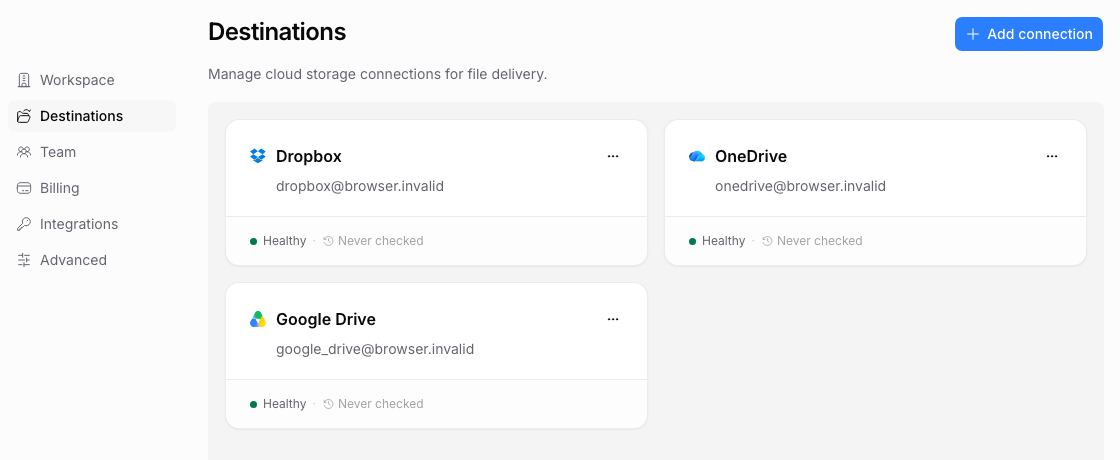
- Review cloud folder permissions in Google Drive, Dropbox, or OneDrive. A page password does not change those permissions.
- Give integrations only the access their job needs. Review API tokens and connected-app grants and revoke ones you no longer use.
A shared upload link is a collection endpoint. It does not give its holder access to your workspace or a general listing of your cloud folder. Treat answers such as a client ID as supplied data, not proof of identity or permission.
Records and files have separate lifecycles
A submission record holds answers, status, and file references. A CSV or activity export does not contain a backup of the uploaded file contents. Keep backups and retention controls at the systems where you store the files.
Moving a cloud file, changing its permissions, disconnecting a storage account, or removing a teammate can affect access to an existing reference. Check provider access before assuming a missing preview means that no file arrived.
Before a teammate leaves
Transfer workspace ownership if needed, replace connections they own, review automation credentials, and revoke their account sessions or connected-app grants through the appropriate controls. Test affected destinations before relying on the next live submission.
For suspected unauthorized access or a deletion request, contact support. Send identifiers and error details, not tokens, passwords, or private file contents.