Compare received submissions against a checklist of documents you expect from each client. PigeonFiles supplies the intake log; your spreadsheet and team manage the expected list and follow-up.
What this recipe can and cannot do
It can give your team a spreadsheet view of received vs. expected documents per client. PigeonFiles logs every submission with the client name, document type, timestamp, and file links. A checklist tab in the same spreadsheet lets you compare what you expected against what actually arrived.
It cannot send automated missing-document reminders. PigeonFiles logs what arrived. The comparison and follow-up happen in the spreadsheet and through your team's process, or through a separate Zapier/Make automation if you build one.
1. Create required fields for client and document type
Your upload page needs at minimum:
- Client name, text or select field (select is better if you have a fixed client list)
- Email, for follow-up
- Document type, select field with consistent options
Using a select field for document type is important. Free-text entries like "w2", "W-2", and "w 2" will not match against your expected-document list reliably.
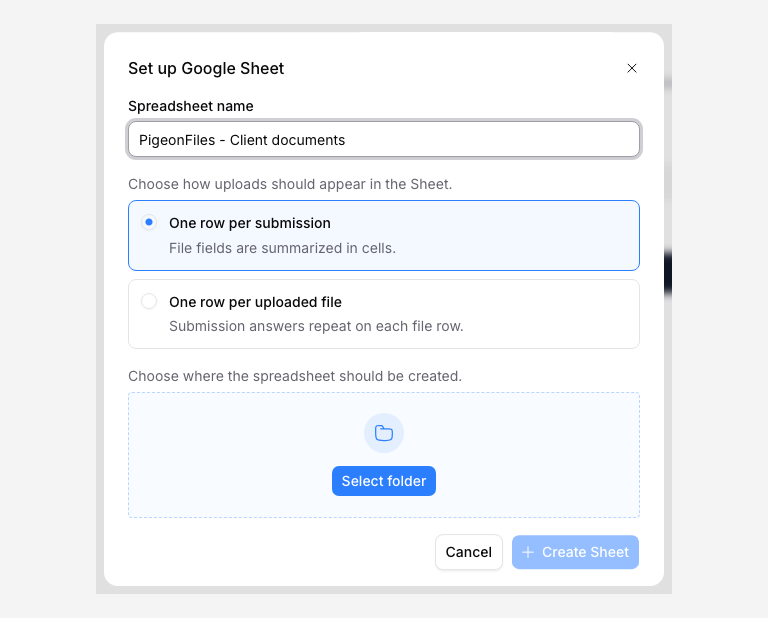
2. Connect Google Sheets in file-level row mode
Open the upload page settings, go to Automation, and connect Google Sheets.
Choose one row per file mode. This gives each uploaded document its own row, which makes it easier to compare against an expected-document checklist where each expected item is also one row.
3. Create an expected-document checklist tab
In the same spreadsheet, create a second tab called something like "Expected Documents." Add columns for:
| Client name | Document type | Expected by |
|---|---|---|
| Anastasia Joseph | W-2 | 2026-03-01 |
| Anastasia Joseph | 1099 | 2026-03-01 |
| Anastasia Joseph | Bank statement | 2026-03-01 |
| Riverside Cafe | Profit & Loss | 2026-03-01 |
| Riverside Cafe | Balance Sheet | 2026-03-01 |
| Riverside Cafe | Bank statement | 2026-03-01 |
This is your source of truth for what each client should send.
4. Compare received rows against expected rows
Add a "Received" column to your expected-document tab. Use a COUNTIFS formula to check whether a matching row exists in the submissions tab:
=COUNTIFS(Submissions!B:B, A2, Submissions!D:D, B2)
(Adjust column references to match your actual spreadsheet layout.)
A value of 0 means no matching logged row exists. A value above 0 means a row matches the answers; your team still needs to check that the file is the expected document.
Keep each submission to one document category if you use a single Document type answer. In file mode, that same answer repeats on every file row. A mixed batch does not classify each file by its contents. Add the year or period to your checklist and formula if the same document category repeats over time.
5. Use filters and conditional formatting
- Apply conditional formatting to highlight rows where the received count is 0; these are your missing documents.
- Filter by client to see one client's checklist at a time.
- Sort by "Expected by" date to prioritize follow-up.
- Use a pivot table if you want a summary view of completion rates across clients.
6. Optional: Zapier/Make task creation for follow-up
If you want a follow-up task created when a document is still missing after a deadline, you can build a separate Zapier or Make workflow that reads the spreadsheet on a schedule and creates tasks for overdue items.
This is a spreadsheet-driven workflow, not a PigeonFiles feature. PigeonFiles handles the intake and logging. The follow-up logic lives in your spreadsheet and automation tools.
Related pages
- Send submissions to Google Sheets for the full Sheets setup guide.
- Automations and integrations.
- Start from a template.
- Create a document request.
Frequently asked questions
Does PigeonFiles automatically remind clients about missing documents?
No. PigeonFiles logs what has arrived. The missing-document comparison happens in your spreadsheet, and follow-up is handled by your team or through a separate automation.
Can I use this for tax document tracking?
Yes. Use a tax document type select field and a tax year field, then build an expected-document checklist per client and year in your spreadsheet.
What row mode should I use?
File mode (one row per file) is usually better for missing-document tracking because each document type gets its own row, making comparisons easier.