Use the upload page’s Share dialog to send uploaders its public URL. An editor URL is for your workspace team and can ask recipients to sign in.
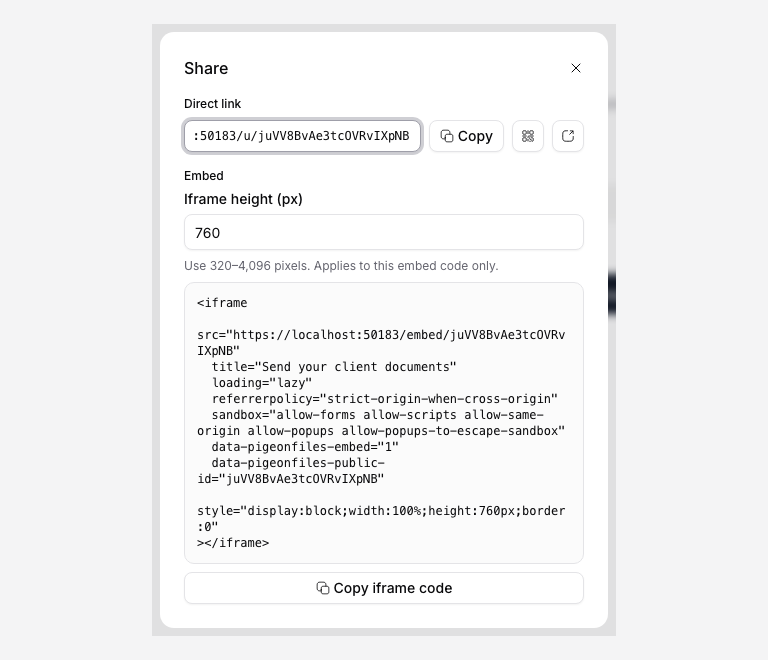
The screenshot uses a demonstration address. Copy the link from your own page.
Copy the public link
- Open the intended page in the correct workspace.
- Click Share.
- If the page is disabled, review and confirm Enable and share when ready.
- Click Copy beside Direct link, or copy the link text.
- Test that link in a private browser window before sending it.
Password-protected pages still ask for the page password. Send the password through an appropriate separate channel; a QR code does not bypass it. An expired, disabled, archived, or plan-blocked page can also stop accepting uploads.
Use a custom-domain link
When an eligible workspace has a verified upload domain, Share offers the Custom domain link and an App-hosted fallback link. The fallback is useful while you diagnose the custom domain. See custom-domain setup.
Download a QR code
On a plan with QR sharing, open the QR code options beside the link. Choose Download SVG, Download PNG, or Copy PNG. If your browser does not support copying PNG images to the clipboard, download the PNG instead.
Check the destination before printing or distributing the code. Scan a sample using another device and complete a small test submission. The QR code opens the same page and remains subject to its access and expiry settings.
Put the form on a website
Use Copy iframe code in Share, or the matching website-builder integration. Review Embed an upload page for iframe height, JavaScript allowed origins, and testing inside the surrounding website.
The recipient sees a sign-in screen
Compare the URL you sent with the public link in Share. Replace an internal /upload-pages/.../edit link with the copied public URL. Uploaders do not need workspace accounts.