Open an upload page’s Automation > Email notifications settings to choose the team members who should hear about new submissions. Configurable recipients require Solo or above; recipient limits depend on the plan.
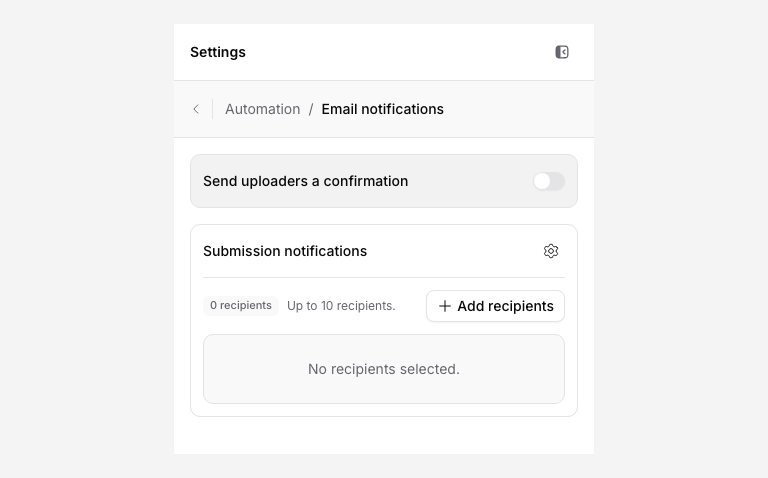
Choose team recipients
- Open the page editor and select Automation > Email notifications.
- Under Submission notifications, click Add recipients.
- Select the people who need the notification. Review the count and limit in the panel.
- Click Save changes. On an enabled page this updates the live settings. Enable a disabled page when ready.
- Complete a small sample submission and check delivery with the selected recipients, including spam or junk folders.
Remove recipients who no longer need the information. Selecting a recipient does not grant access to the workspace or the destination folder. Free may send default operational messages to the page creator; it does not include the paid recipient configuration.
Current limits
The editor shows Send uploaders a confirmation and may show custom subject or message settings. The current submission email delivery process does not use those settings. Do not depend on that switch to email your uploader or on a custom template to change the delivered message.
Use the page’s Success content to tell uploaders what happens next. If an acknowledgment email is essential, configure and test a separate Zapier, Make, or webhook workflow with your email service. Collect the address you need and check your service’s sending rules.
The standard team message and any verified sender domain are separate from custom message content.
If a team email is missing
Check the selected recipients, saved configuration, and submission status. Confirm the address and spam folder. If other outputs succeeded, include the submission ID and recipient address when contacting support; do not send the documents or credentials.
For Slack, Teams, or another channel, follow the team-channel recipe. The email recipient selector does not connect a channel.