Post a message in your team’s channel after a submission through a Zapier, Make, or webhook workflow. Configure the channel action in that service; PigeonFiles supplies the submission event.
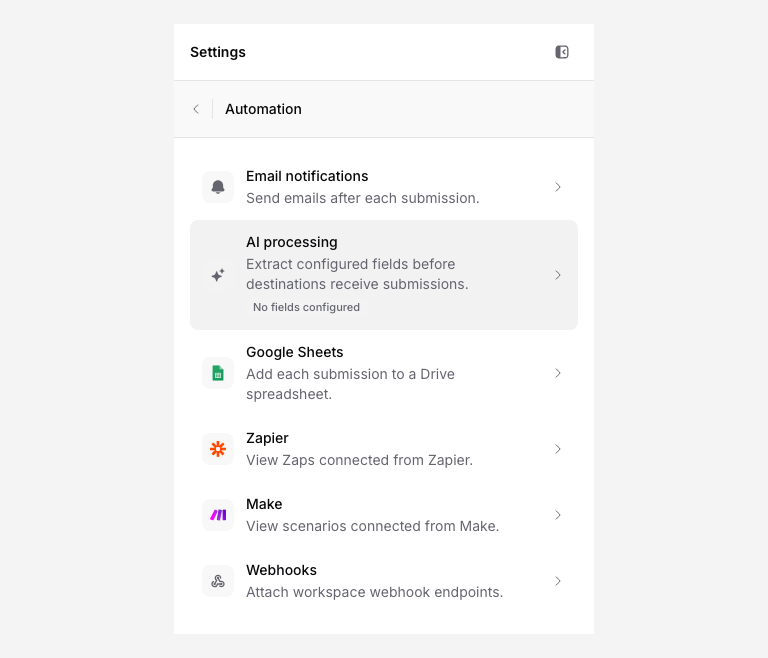
Choose the automation path
Pick the path that fits your team:
| Path | Best for | Setup effort |
|---|---|---|
| Zapier | Teams already using Zapier, minimal code | Low |
| Make | Teams already using Make, more flexible mapping | Low |
| Webhook | Teams with a developer who can receive, verify, and transform a webhook | Medium |
All three paths start with a PigeonFiles submission event and end with a message in your channel.
Decide what the message should include
A useful notification typically includes:
- Who uploaded, uploader name and email
- What they sent, document type and file count
- Which upload page, helpful if you have multiple pages
- Where files landed, storage destination path or file links
- When, submission timestamp
Keep the message concise. The goal is to tell your team "something arrived" so they can act on it, not to reproduce the entire submission record.
Example message format
New upload on [Upload Page Name]
From: [Uploader Name] ([Email])
Document type: [Document Type]
Files: [File Count] file(s)
Storage: [Destination Path]
Configure the submission trigger
Zapier
- Create a Zap in Zapier.
- Connect PigeonFiles in Zapier and choose the intended workspace.
- Select the upload page for the submission trigger. Manage the Zap in Zapier; PigeonFiles lists its subscription under Automation.
Make
- Create a scenario in Make.
- Connect PigeonFiles in Make and choose the intended workspace.
- Select the upload page for the submission trigger. Manage the scenario in Make; PigeonFiles lists its subscription under Automation.
Webhook
- Build an HTTPS handler that verifies PigeonFiles signatures and converts the submission data into the message format your channel tool requires.
- Create a webhook endpoint pointing to your handler.
- Attach the endpoint under Automation > Webhooks on the upload page and save it. Enable the page if needed.
- Have the handler call your channel tool’s incoming webhook or API. PigeonFiles sends its submission payload; it does not transform it into a Slack or Teams message format.
Configure the destination in the channel tool
In your Zapier Zap or Make scenario, add an action step that posts a message to your channel. Map the PigeonFiles submission fields into the message template.
If you use a custom webhook handler, format the outgoing message in that handler to match what the channel tool expects.
Submit a test upload
Upload a test file through the page and verify that:
- A message appears in the channel.
- The message includes the expected fields.
- The message format is readable.
Troubleshooting
Duplicate messages: Check that you do not have multiple active Zaps, scenarios, or webhooks pointed at the same upload page. Each active automation fires independently.
Missing fields: If a field value is blank in the notification, check that the upload page has that field and that it was filled in during the test submission. Optional fields may not appear in every submission.
Failed deliveries: Check the Zapier task history, Make scenario log, or webhook delivery log for error details. Common causes include expired channel tool tokens, incorrect webhook URLs, and rate limits on the channel tool side.
Related pages
- Connect Zapier for Zapier setup.
- Connect Make for Make setup.
- Create a webhook endpoint for webhook setup.
- Automations and integrations.
Frequently asked questions
Does PigeonFiles have native Slack or Teams integration?
No. PigeonFiles sends submission data through Zapier, Make, or webhooks. You configure the channel destination in the automation tool, not in PigeonFiles.
Can I choose which uploads trigger a notification?
Yes. Use filter steps in Zapier or Make to send notifications only for specific upload pages, document types, or clients.
What information can the notification include?
Uploader name and email, document type, upload page name, file count, file names, storage destination path, and submission timestamp.