Connect Dropbox, then choose a folder on each file field that should send files there.
When PigeonFiles adds to Dropbox
Dropbox has its own File Requests feature. It works for simple file collection into a single folder when you don't need metadata, routing, or submission records.
PigeonFiles adds structure: branded upload pages with custom fields, folder routing based on uploader answers, submission records, and automations like email notifications and Google Sheets logging. Files still land in your Dropbox.
If a Dropbox File Request is enough for your workflow, use it. If you need the operational layer around intake, connect Dropbox to PigeonFiles.
Steps
-
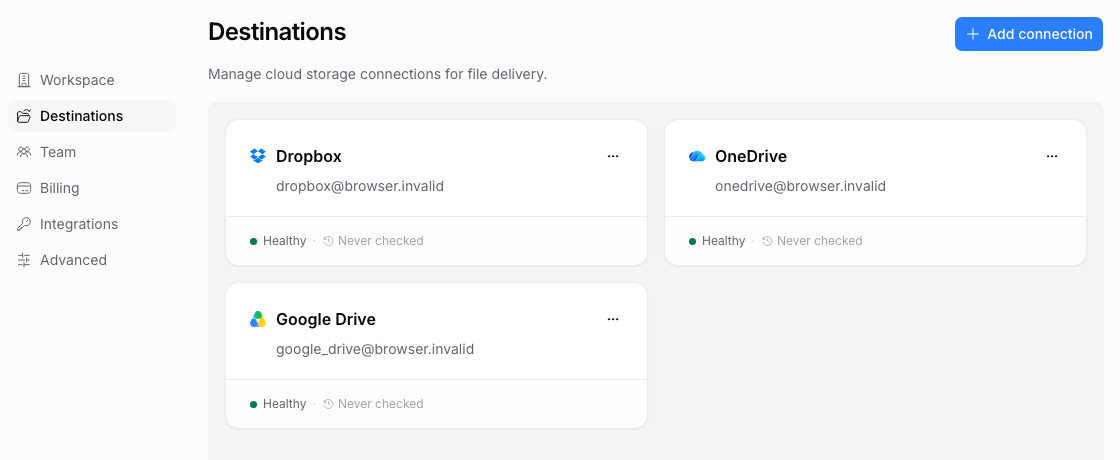
Open Destinations. In your PigeonFiles workspace, go to Settings > Destinations.
-
Start the Dropbox connection. Click Add connection, choose Dropbox, then continue to the provider authorization flow.
-
Sign in to Dropbox. Choose the Dropbox account where you want files delivered.
-
Grant permissions. Approve the permissions PigeonFiles requests. PigeonFiles needs access to create files and folders in your Dropbox on behalf of uploaders.
-
Open your upload page. Open a draft and use the folder control on its file upload field.
-
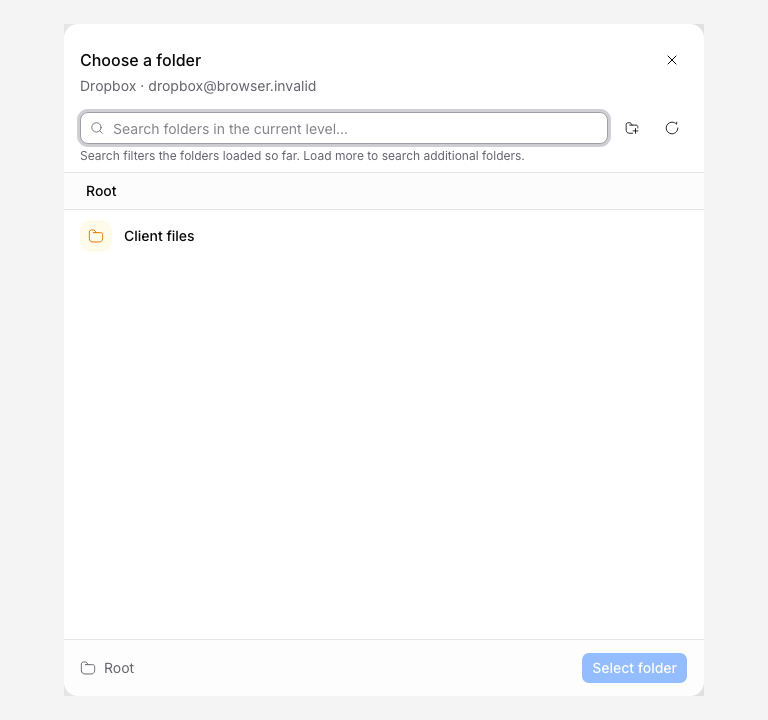
Choose or create a folder. Click Select folder (or Change for an existing destination). With one connected account, its picker opens directly. With multiple accounts, choose the Dropbox account from the menu. Browse to a folder and click Select folder. To create one in the location you are browsing, use the Create folder button, enter its name, and confirm. To use another account, close the browser and reopen the destinations menu.
-
Choose how to organize uploads. In the field’s File organization settings, leave Organize into subfolders off to receive files directly in your selected folder. Turn it on to build folders from form answers, where your plan includes folder organization. Matching answers keep using the same folders PigeonFiles creates. Existing folders with the same name stay separate.
-
Save and test. Click Save changes. If the page is disabled, enable it when ready. Send a sample upload through its public link. Check both the selected storage folder and the completed submission record.
You can connect storage during onboarding and choose its folder in the same page editor. Connection settings manage the account; each file field keeps its chosen destination. Changing a folder does not turn automatic organization on or off.
Troubleshooting
Connection needs reauthorization. Dropbox tokens can expire or be revoked. Go to Settings > Destinations and reconnect the Dropbox account.
Folder access changed. If the destination folder was moved, deleted, or permissions changed, delivery will fail. Choose a new folder or restore access in Dropbox.
Dropbox storage limits. Your Dropbox plan's storage quota applies. If the account runs out of space, delivery fails.
Next steps
Frequently asked questions
When should I use PigeonFiles instead of Dropbox File Requests?
Dropbox File Requests work for collecting files into one folder with no metadata. Use PigeonFiles when you need branded pages, structured fields, folder routing, submission records, or automations alongside Dropbox storage.
Does PigeonFiles give uploaders access to my Dropbox?
No. Uploaders submit through the upload page. PigeonFiles delivers files to Dropbox on their behalf.