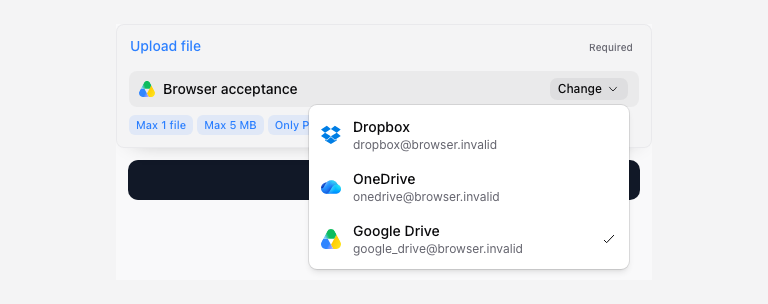
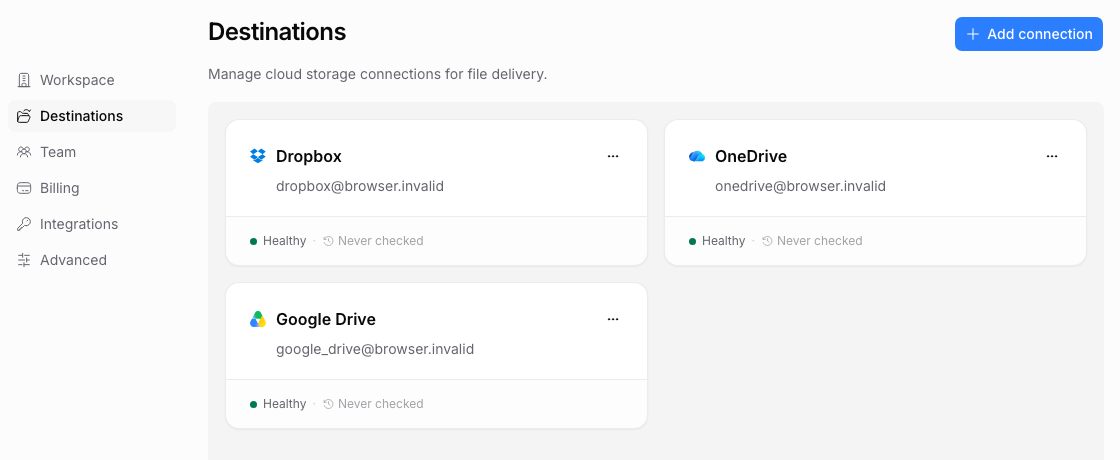
Connect a cloud account in Settings > Destinations, then choose its folder on each file upload field. The account connection and the field’s destination are separate settings.
Choose the folder for a file field
Open the file field’s Select folder or Change control. With several connected accounts, choose the intended account first. With one account, its folder picker can open directly.
For Google Drive, select an existing folder in Google’s picker. Create a new folder in Drive first if needed. Dropbox and OneDrive use the folder browser, where Create folder creates a folder in the location you are viewing.
Save the page and test the shared link. Changing the folder does not enable Organize into subfolders; configure that in File organization.
Read connection health
| Status or symptom | Next action |
|---|---|
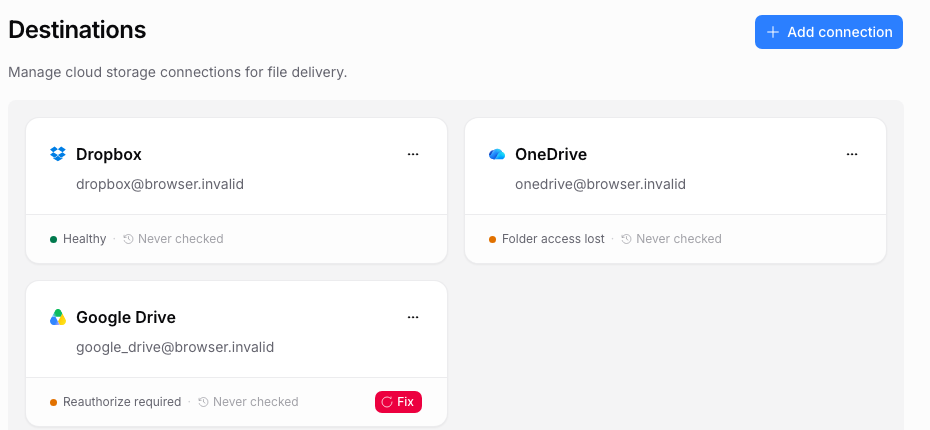
| Reauthorization required | Reconnect the same provider account and approve the current request. |
| Folder access lost | Check that the folder exists and the connected account can write to it. Select another folder if needed. |
| Temporary provider issue | Retry the check after the provider recovers. Avoid changing valid routing to work around a transient error. |
| Owner removed | Have a current member connect an appropriate account and replace affected file destinations. |
| Healthy account, failed file | Inspect the specific submission file, selected folder, provider quota, and error. Account health alone does not prove that transfer succeeded. |
Use the connection’s menu to run a live test or reconnect when those actions are available. A successful authorization does not repair a deleted destination folder.
Replace or remove a connection
Before removing an account connection, identify pages and automations that use it. Connect the replacement, update their file fields, save, and test a small upload. Pause affected pages if you cannot keep a valid destination available during the change.
Removing a connection can block future delivery. It does not move already delivered files into another account, transfer Google Sheets ownership, or delete files from the original provider.
Connections can belong to different workspace members. If a teammate’s authorization is needed, ask that person to reconnect it or replace the dependency with a connection you control. Workspace membership alone does not grant you access to their cloud account.
For provider-specific authorization and folder behavior, see Google Drive, Dropbox, or OneDrive.
Choose between connected accounts
With multiple accounts, use the file field’s Change menu to select the provider account before choosing its folder. Confirm the email shown in the picker. A familiar folder name in the wrong account is a different destination.