Connect OneDrive, then choose a folder on each file field that should send files there.
Steps
-
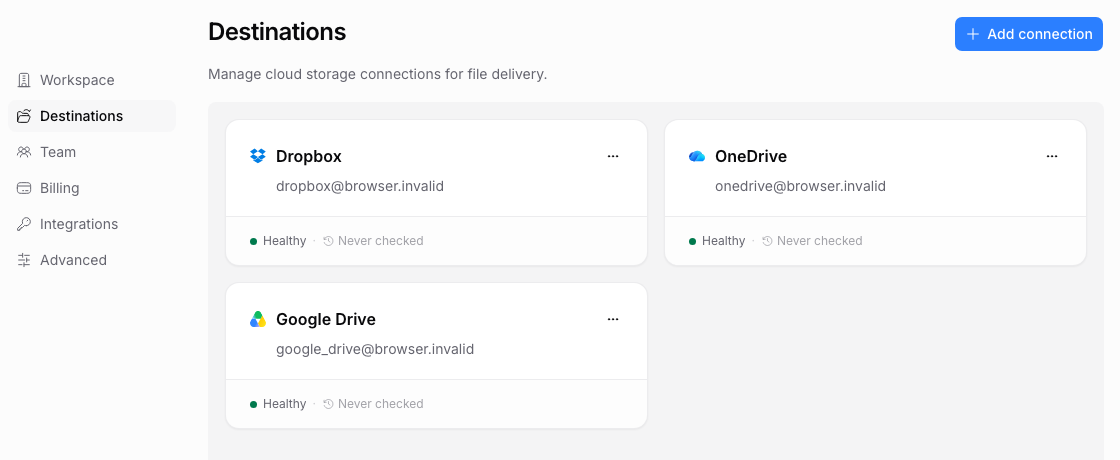
Open Destinations. In your PigeonFiles workspace, go to Settings > Destinations.
-
Start the OneDrive connection. Click Add connection, choose OneDrive, then continue to the provider authorization flow.
-
Sign in with your Microsoft account. Choose the Microsoft account that has access to the OneDrive folders where you want files delivered. This can be a personal account or a work/school account.
-
Grant permissions. Approve the permissions PigeonFiles requests. PigeonFiles needs access to create files and folders in your OneDrive on behalf of uploaders.
-
Open your upload page. Open a draft and use the folder control on its file upload field.
-
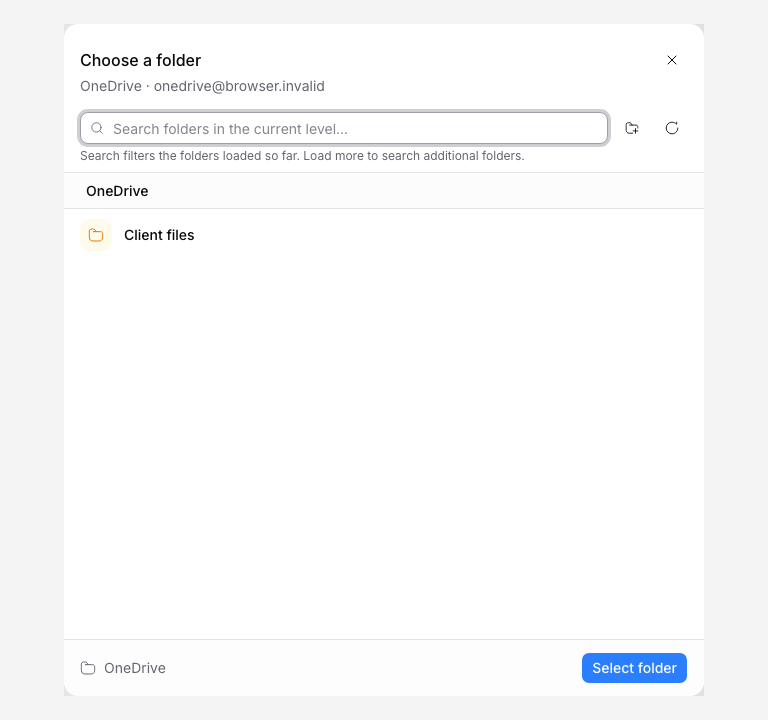
Choose or create a folder. Click Select folder (or Change for an existing destination). With one connected account, its picker opens directly. With multiple accounts, choose the OneDrive account from the menu. Browse to a folder and click Select folder. To create one in the location you are browsing, use the Create folder button, enter its name, and confirm. To use another account, close the browser and reopen the destinations menu.
-
Choose how to organize uploads. In the field’s File organization settings, leave Organize into subfolders off to receive files directly in your selected folder. Turn it on to build folders from form answers, where your plan includes folder organization. Matching answers keep using the same folders PigeonFiles creates. Existing folders with the same name stay separate.
-
Save and test. Click Save changes. If the page is disabled, enable it when ready. Send a sample upload through its public link. Check both the selected storage folder and the completed submission record.
You can connect storage during onboarding and choose its folder in the same page editor. Connection settings manage the account; each file field keeps its chosen destination. Changing a folder does not turn automatic organization on or off.
Work and school accounts
Microsoft accounts come in personal and work/school (Microsoft 365) flavors. A few things to keep in mind:
- Admin policies. Some organizations restrict which third-party apps can access OneDrive. If authorization fails, your IT admin may need to approve PigeonFiles.
- Folder permissions. The folders available to PigeonFiles depend on what the connected account can access. Shared folders or team libraries may require additional permissions.
- Token expiration. Microsoft tokens can expire, especially for work/school accounts with conditional-access policies. If the connection stops working, reconnect it from Settings > Destinations.
Troubleshooting
Connection needs reauthorization. Microsoft tokens can expire or be revoked. Go to Settings > Destinations and reconnect the OneDrive account.
Folder access changed. If the destination folder was moved, deleted, or permissions changed, delivery will fail. Choose a new folder or restore access in OneDrive.
Admin restrictions. If you use a work or school account and authorization is blocked, contact your Microsoft 365 administrator. They may need to allow PigeonFiles as a connected app.
OneDrive storage limits. Your OneDrive plan's storage quota applies. If the account runs out of space, delivery fails.
Next steps
Frequently asked questions
Can I use a work or school OneDrive account?
Yes. You can connect a personal Microsoft account or a work/school account. The folders available depend on the account's permissions and any admin policies your organization has set.
Does PigeonFiles give uploaders access to my OneDrive?
No. Uploaders submit through the upload page. PigeonFiles delivers files to OneDrive on their behalf.