Open your account menu and choose Profile to manage your own identity and security. Workspace settings affect the selected workspace; profile settings belong to your account.
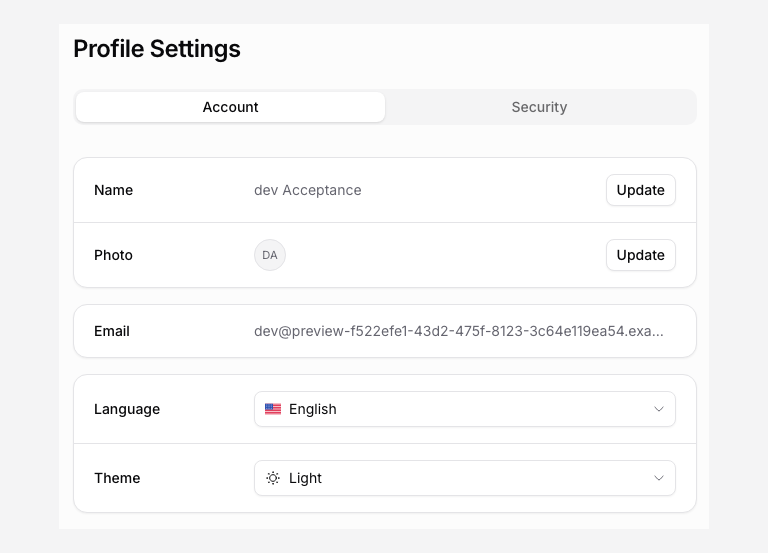
Change your profile or preferences
Use the edit action beside your name to change it. Review your profile photo, language, and theme settings in the same page. Your preferred app language and an upload page’s public Form language are separate settings.
The account section shows the sign-in email and account details. For an email-address or account-ownership problem, contact support; changing a workspace name does not change your sign-in identity.
Review signed-in devices
Open the Security tab and inspect Sessions. The current session is identified as Current Session. Use Revoke to end another session, or Revoke all others to sign out your other devices. The current session remains open.
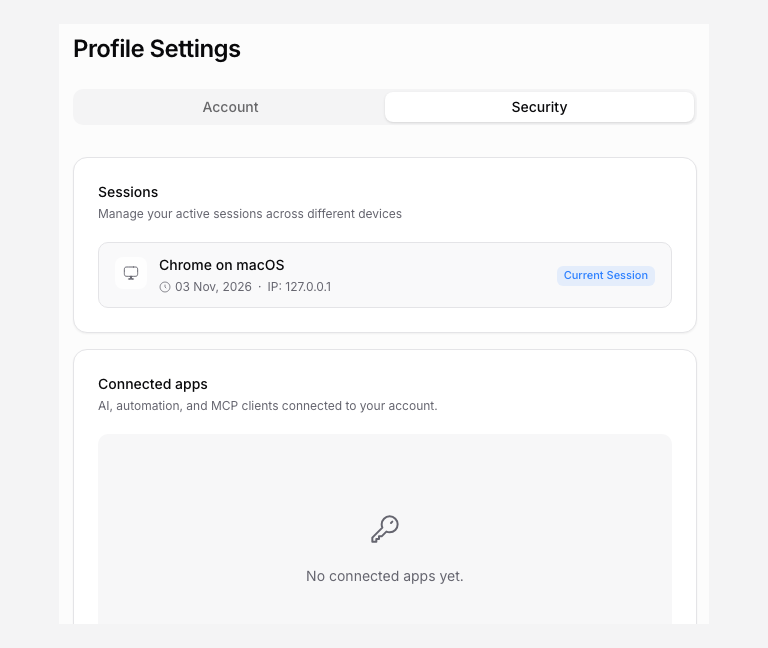
If a device looks unfamiliar, revoke it and review your sign-in provider’s security. Do not send session identifiers or authentication links through support chat.
If the app asks you to Sign in again, complete fresh authentication before continuing. A failed session-list request does not establish that there are no other sessions. Retry the read before making a decision.
Disconnect a sign-in provider
The profile’s sign-in methods section lists linked Google or Microsoft identities. Review Disconnect before confirming. You can still sign in through your email address.
Disconnecting a sign-in method and removing a storage connection are separate tasks. To stop deliveries to a cloud account, review Settings > Destinations.
Revoke an AI or automation app
Review Connected apps in Profile > Security. Check the app and workspace, then use Revoke to remove its authorization. The app must reconnect and obtain approval before it can use PigeonFiles again.
Workspace admins can also review workspace grants in Settings > Integrations > Connected AI apps. Revocation can stop an automation that depends on that grant. Identify its consumer before removing it.
For API credentials, use API Tokens; they are separate from OAuth-connected apps.