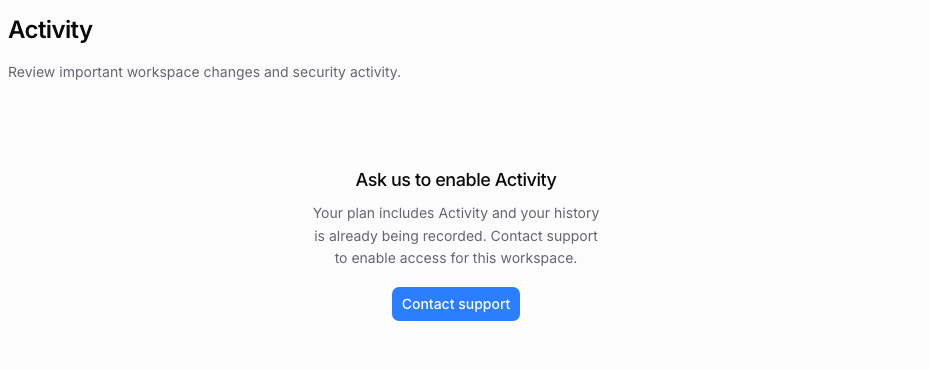
Owners and admins can open Settings > Activity to check workspace activity access. Agency provides eligibility; activation is a separate step. If the page asks you to contact support, use that action to request activation.
Review recorded actions
After activation, use the available filters to narrow the event list by time, actor, or action. Open an event to inspect the details the app records. Compare the event time and workspace before attributing a change to a teammate.
The log covers supported recorded actions. Do not treat an empty result as proof that no action occurred: check your filters, activation state, and the period available in the app.
Export activity
Use the export action when available for your workspace. Check the selected filters before starting the export, then follow its status until the download is ready. Request a new export if the download has expired.
Store exports where your team permits access to operational records. An activity export is not a backup of cloud files or a copy of file contents.
Access problems
If Activity is unavailable, confirm that you are in the correct workspace and have an owner or admin role. If Agency is eligible but not activated, contact support. A billing upgrade alone does not confirm activation.
For file-delivery status and uploader answers, use Received submissions.