Create a Make scenario that turns a submission into a record, task, or message in another service. Start in Make; PigeonFiles lists the connected subscription after setup.
What the Make connection does
When someone submits files through a PigeonFiles upload page, the submission event can trigger a scenario in Make. The scenario receives the submission data, uploader details, field answers, file metadata, and destination information, and passes it through whatever modules you configure.
This lets operations teams connect file intake to downstream tools through Make without writing code. Common examples include creating a task in a project tool through Make, updating a CRM record through Make, or sending a notification to a team channel through Make.
Pro or Agency is required. You also need access to the integration in the automation service. If PigeonFiles does not appear in that service’s app list, contact support for its current availability before building the workflow.
Steps
-
Start in Make. Log in to your Make account and create a new scenario.
-
Add a PigeonFiles trigger module. Search for PigeonFiles in the module list and add it as the trigger.
-
Select the trigger event. Choose the submission event type you want to trigger on.
-
Connect your PigeonFiles account. Make opens a PigeonFiles authorization flow. Sign in and authorize Make to access your workspace.
-
Choose the upload page. Select which upload page this scenario should listen to. Each scenario subscribes to one upload page.
-
Test the trigger. Run the scenario once to pull a sample event. If no sample is available, submit a test upload through the upload page first, then run the scenario to pick up the event.
-
Add action modules. Configure the downstream modules and field mappings. You can map uploader name, email, field answers, file names, file links, and other submission data into each module's inputs.
-
Activate the scenario. Turn on the scenario so it runs on every new submission event for that upload page.
What data is available
The PigeonFiles trigger module provides submission data you can map into downstream modules:
- Uploader name and email (if collected on the upload page).
- Field answers from the upload page's metadata fields.
- File names, sizes, types, and destination details.
- Submission timestamp and upload page context.
- AI extraction values (if AI processing is configured on the upload page).
Viewing connected scenarios in PigeonFiles
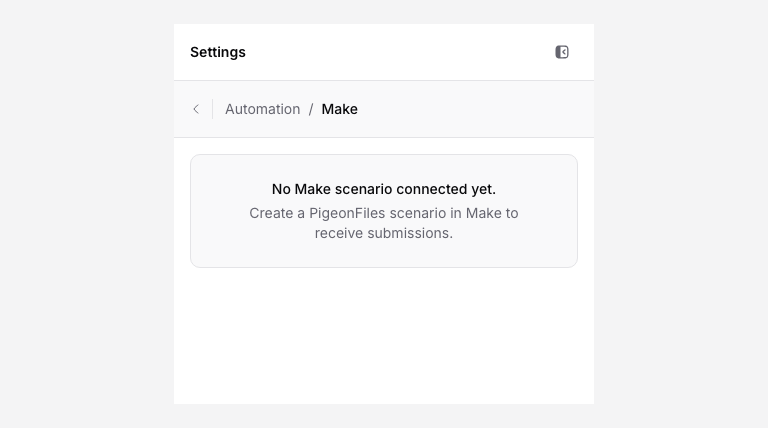
After creating a scenario, the subscription appears in the PigeonFiles upload page editor under Automation > Make. Connected scenarios show as read-only entries with their status (Enabled or Disabled) and subscribed events. You manage the scenario itself from Make, not from PigeonFiles.
Troubleshooting
Scenario not running. Check that the scenario is activated in Make and that the PigeonFiles authorization is still valid. Submit a test upload and check the scenario's execution history in Make.
Missing fields in downstream modules. If you added new fields to the upload page after creating the scenario, re-map the trigger module in Make so the new fields appear.
Authorization expired. Reconnect PigeonFiles in Make's connection settings. The scenario will resume receiving events after reauthorization.
Duplicate runs. If a scenario runs twice for the same submission, check whether you have multiple scenarios listening to the same upload page, or whether Make's scheduling processed a retry.
Next steps
- Connect Zapier, an alternative no-code automation platform.
- Automations and integrations.
- Send submissions to Google Sheets, log submissions as spreadsheet rows without Make.
Frequently asked questions
Does PigeonFiles send the actual uploaded files to Make?
No. PigeonFiles sends submission metadata, uploader details, field answers, file names, file sizes, destination paths, and file links. Use the file links to access files from your connected storage.
Can I trigger scenarios from specific upload pages only?
Yes. When you set up the PigeonFiles trigger in Make, you select which upload page the scenario subscribes to. Each scenario subscribes to one upload page.
Where can I see connected scenarios?
In the PigeonFiles upload page editor, open the Automation section. Connected Make subscriptions appear as read-only entries showing their status and subscribed events.