Read the confirmation dialog before deleting a workspace or account. These actions can remove access and records you need later. Export the records you must retain and check who owns the storage connections first.
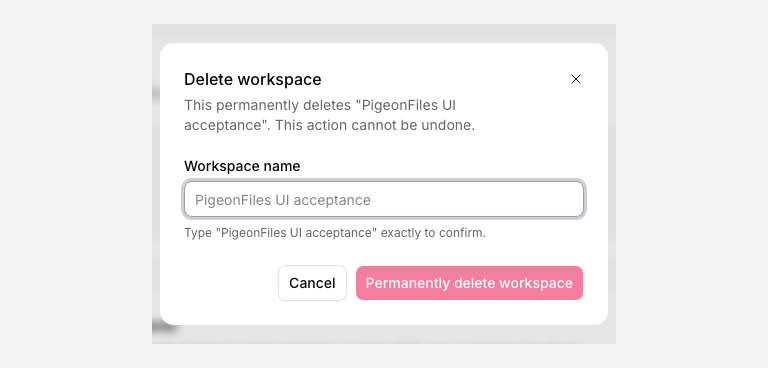
Delete a workspace
The workspace owner can find the deletion action in workspace settings. Check the workspace name in the dialog. Review its warnings about pages, submissions, teammates, and subscription state before confirming.
If the workspace should continue without you, transfer ownership through Team settings instead. Replace storage connections owned by a departing member and test affected destinations before removing that person.
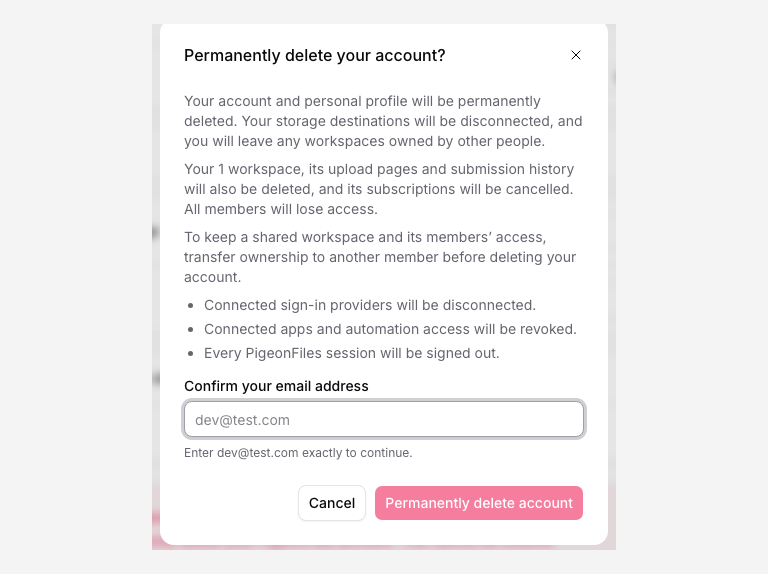
Delete your account
Open Profile Settings and find the account deletion action. Follow the ownership requirements shown in the dialog. You may need to transfer or delete workspaces you own before proceeding.
Check subscriptions and retain any invoices you need. Deleting an account, removing a teammate, changing a seat quantity, and cancelling billing have different effects. Follow the billing status shown in Billing.
Files in connected storage
Review files in Google Drive, Dropbox, or OneDrive through that provider. Do not use account deletion or disconnecting storage as a way to erase a cloud folder. PigeonFiles records and provider files have separate lifecycles.
If you need help meeting a deletion or retention request, contact support before confirming. Do not include private files, access tokens, or passwords in the request.