Create or update a CRM record from submission answers and file links. Use Zapier, Make, or your own webhook receiver to look up the record and perform the CRM action.
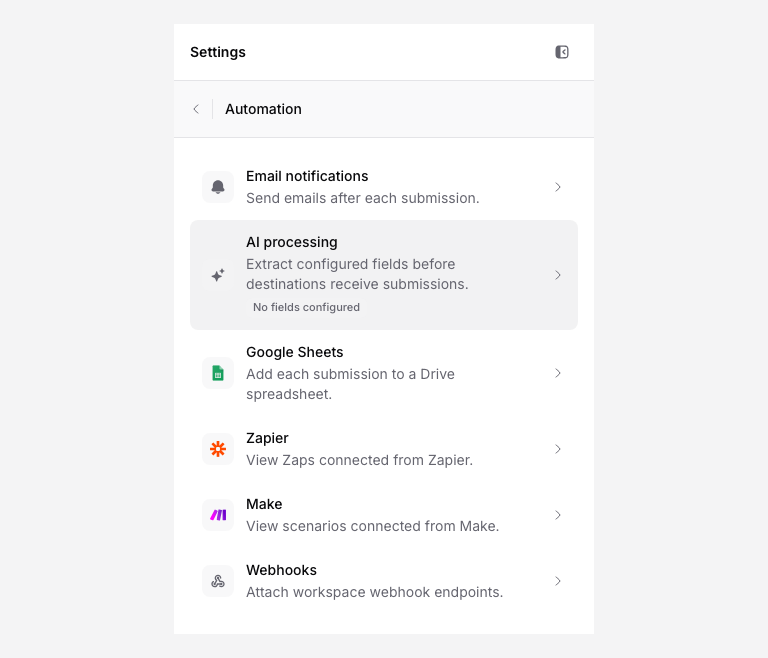
Decide what record should be created or updated
Before building the automation, decide what should happen in the CRM when a submission arrives:
- Create a new contact or company from the uploader's name and email.
- Create an activity or note on an existing contact record, "Uploaded W-9 on June 21."
- Update a field on an existing record, mark "Documents received" as true, or log the file link.
- Create a deal or opportunity if the upload represents a new engagement.
The right choice depends on your CRM structure and when in your process uploads happen.
Add fields that map cleanly to the CRM
Design your upload page fields so they translate directly to CRM fields. Ambiguous text fields create messy CRM data.
| PigeonFiles field | CRM field | Notes |
|---|---|---|
| Contact email | Use this as the lookup key for duplicates | |
| Client / Company | Company name | Use a select field for consistency |
| Contact name | Contact name | |
| Document type | Activity or note type | |
| Submission timestamp | Activity date | Included automatically |
| File link | Attachment or link field |
If your CRM has a record ID field, add an optional CRM ID question if uploaders know their reference. Validate that reference in your automation before updating a record; a supplied ID does not prove permission to change it.
Connect the automation
Zapier
- In Zapier, create the PigeonFiles connection and select the upload page. See Connect Zapier.
- Create a Zap with a PigeonFiles submission trigger.
- Add a search step to look up the contact by email (avoids duplicates).
- Add a create-or-update step for the CRM record.
- Map the PigeonFiles fields to the CRM fields.
Make
- In Make, create the PigeonFiles connection and select the upload page. See Connect Make.
- Create a scenario with a PigeonFiles submission trigger.
- Add a search module to find existing CRM records by email.
- Add a create-or-update module for the CRM record.
- Map the fields.
Webhook or API
- Create a webhook endpoint or use an API token.
- For a webhook, receive and verify the submission event, look up the CRM record, and call the CRM’s API. For an API-only workflow, poll the records your token can read and track processed submission IDs. An API token does not send push events.
Map submission data into the CRM record
A typical mapping for creating a CRM activity from a file upload:
Activity title: "Uploaded [Document type] via PigeonFiles"
Contact: [Email] (looked up in the search step)
Company: [Client / Company]
Date: [Submission timestamp]
Note: "File: [File name] | Storage: [Destination path]"
Link: [File link]
Adjust the mapping to match your CRM's field names and data types.
Test with a real submission
Submit a test upload through the page and verify:
- The CRM record was created or updated correctly.
- The field values match what was submitted.
- The file link points to the right file in storage.
- No duplicate record was created.
Handle duplicates
Duplicates are the most common issue with CRM automations. Use a stable identifier to prevent them:
- Email can be a contact lookup key if your CRM treats it as unique. Account for shared or changed addresses.
- Client ID or CRM record ID works when the uploader knows their internal reference.
- Vendor ID or account number works for vendor-focused pages.
Configure your Zapier Zap or Make scenario to search for an existing record before creating a new one. If a match exists, update it instead.
Related pages
- Connect Zapier for Zapier setup.
- Connect Make for Make setup.
- Create a webhook endpoint for webhook setup.
- Create API token for API access.
- Automations and integrations.
Frequently asked questions
Does PigeonFiles integrate natively with any CRM?
No. PigeonFiles sends submission data through Zapier, Make, webhooks, or the API. You configure the CRM connection in the automation tool.
Can the CRM receive the uploaded files?
PigeonFiles passes file links and metadata. If your CRM supports attachments via link, you can include the file URL. Uploading file binaries into the CRM requires additional automation steps in your workflow.
How do I avoid duplicate CRM records?
Use a stable identifier field, email, client ID, or CRM record ID, to look up existing records before creating new ones. Zapier and Make both support search-before-create steps.