Extract invoice numbers, dates, amounts, or other values from uploaded documents. Define the columns on the file field, then check the results in the submission and configured automation outputs.
Choose the document type and extraction goal
AI extraction works best when you know what kind of document uploaders will send and what values you need from it. Common examples:
- Invoices, extract invoice number, date, total amount, vendor name.
- Receipts, extract vendor, date, total amount, payment method.
- Vendor forms, extract company name, contact email, tax year, or certificate date.
- Contracts, extract party names, effective date, expiration date, signed status.
- Applications, extract applicant name, role, submitted date, or reference number.
Start with a specific document type and a short list of extraction fields. You can expand later.
Set up the file upload field
Open your upload page in the builder. You need at least one file upload field where uploaders will attach the documents you want to process.
If your page collects multiple file categories, for example, invoices and receipts, consider using separate file upload fields so you can configure different extraction columns for each category.
Enable AI processing
In the editor, open Automation > AI processing, then choose the file upload field to configure AI processing. This tells PigeonFiles to analyze uploaded files and extract the values you define.
Define extraction columns
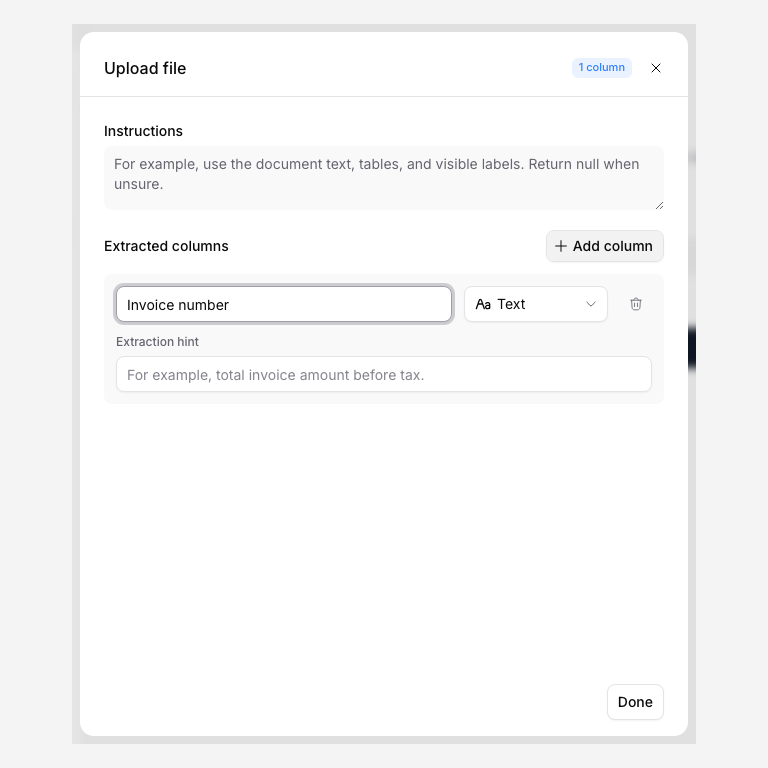
Add the specific fields you want extracted from the document. Each extraction column has:
- Name, a label for the extracted value (e.g., "Invoice number")
- Type, the data type: Text, Number, Date, Yes / no, Currency, Email, or URL
- Extraction hint, instructions for ambiguous fields (e.g., "The invoice identifier shown at the top of the document, not the PO number")
Example: Invoice extraction columns
| Column | Type | Description |
|---|---|---|
| Invoice number | Text | The invoice identifier shown on the document |
| Invoice date | Date | Date the invoice was issued |
| Total amount | Number | Final total amount due |
| Vendor name | Text | Company or person issuing the invoice |
| Signed | Yes/no | Whether the document appears to include a signature |
Tips for better extraction
- Use clear, specific column names. "Total amount" works better than "Amount."
- Add descriptions when a field could be ambiguous. An invoice has multiple dates, "Date the invoice was issued" is clearer than "Date."
- Use the right type. Number fields for amounts, Date fields for dates, Yes/no for presence checks.
- Keep the list focused. Extract the fields you will actually use. More columns does not mean better results.
Submit a test document
Click Done, click Save changes, and enable the page if needed. Upload a representative sample and check the results. Confirm that the workspace has AI credits.
Review extracted values in the submission record
Open the submission record in PigeonFiles. The extracted values appear alongside the standard submission fields, uploader answers, file details, and delivery status.
Check each extracted value against the original document. AI extraction can misread unclear text, unusual layouts, or handwritten entries. Clear, structured documents are easier to review, but the workflow should still include a human check before anyone relies on the values.
Send extracted values to downstream tools
If you have Google Sheets, Zapier, Make, or webhook automations connected to the upload page, extracted values are included in those outputs automatically.
For example, a Google Sheets row for an invoice submission would include the uploader's answers, file links, and the extracted invoice number, date, total amount, and vendor name, all in the same row.
This lets you build workflows like:
- A Sheets-based invoice register that fills itself as vendors upload invoices.
- A Zapier workflow that creates an accounting task with the invoice amount and vendor name already populated.
- A webhook handler that files extracted data into your internal system.
Review expectations
AI extraction is a time-saver, not a replacement for human review. Use it to pre-populate fields and speed up processing, but review extracted values before relying on them for:
- Financial decisions or accounting entries
- Legal or compliance records
- Tax preparation or filing
- Any context where an incorrect value has real consequences
The original uploaded file stays unchanged in your connected storage. AI processing reads the document and writes the extracted values to the submission record, it does not modify, annotate, or overwrite the uploaded file.
Related pages
- Configure AI processing.
- Configure AI processing for setup steps.
- Send submissions to Google Sheets for Sheets connection.
- Connect Zapier for Zapier workflow setup.
- Connect Make for Make scenario setup.
- Create a webhook endpoint for custom integrations.
Frequently asked questions
Does AI processing change the original uploaded file?
No. The original file stays unchanged in your connected storage. AI processing reads the document and extracts the configured values into the submission record.
How accurate is the extraction?
Accuracy depends on the document quality, layout, and field definitions. Clear field names and review steps matter. Always review extracted values before using them for financial, legal, or compliance decisions.
Can I extract from any file type?
AI processing is designed for uploaded documents where the needed values can be read from the file. Check the AI processing documentation for current supported file types before building a workflow around a specific format.
Where do extracted values appear?
Extracted values appear in the submission record. If you have Google Sheets, Zapier, Make, or webhook automations connected, the extracted values are included in those outputs too.