Sign in at app.pigeonfiles.com with the email address you use for your workspace. Public uploaders can send files without signing in.
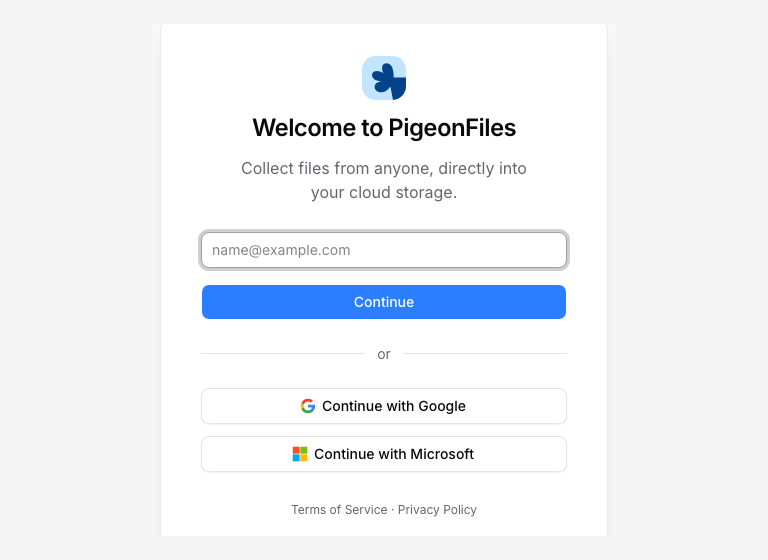
Sign in with email
- Enter your email address and click Continue.
- Open the sign-in email in your inbox.
- Follow its link to finish signing in.
The sign-in link expires after five minutes. Use the most recent message. If you need another link, wait for the resend timer, then click Resend link. Use Use different email if you entered the wrong address.
Use Google or Microsoft
Choose Continue with Google or Continue with Microsoft if the provider appears on the sign-in screen. Choose the identity associated with your PigeonFiles account. Your organization’s provider policies can affect access.
A Google sign-in connection and a Google Drive storage connection serve different purposes. Signing in does not choose where your uploaded files go; configure that in Destinations.
The sign-in email did not arrive
Check the address shown on the confirmation screen, then check spam, junk, and any work-email quarantine. Search for PigeonFiles and use the newest message. If your company filters sign-in email, ask its administrator to check the quarantine.
Request another link after the countdown. If it still does not arrive, contact support with the address you tried and the approximate time. Do not send the sign-in link or verification code.
The link expired or was already used
Return to the sign-in screen and request a fresh link. Open it in the browser where you want to use PigeonFiles. Avoid opening an old message again after you have requested a replacement.
My workspace is missing
Check the email address of the signed-in account and the selected workspace. Invitations belong to their invited email address. Switch workspaces or sign in with the invited account rather than creating another workspace to regain access.
My session expired
Sign in again. If a sensitive action asks for fresh authentication, finish sign-in and return to that action. For an unfamiliar session, review Profile > Security.