Choose the cloud account and folder on each file field. PigeonFiles delivers files there and records the submission’s answers and status in your workspace.
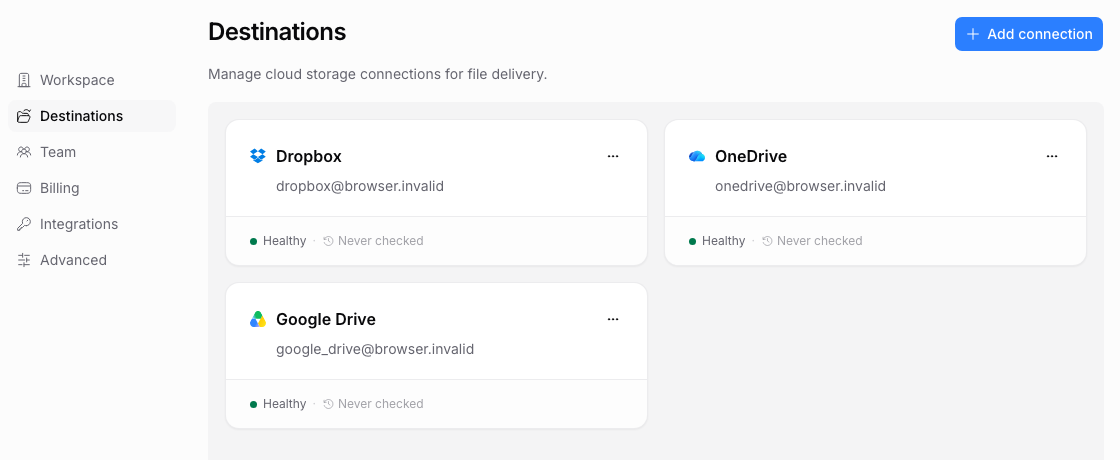
Connect an account and choose a folder
Follow the guide for Google Drive, Dropbox, or OneDrive. Signing into PigeonFiles with Google or Microsoft does not configure a storage destination.
Use Choose and maintain destinations for folder selection, account ownership, reconnection, and health messages. One connected account can open its picker directly; multiple accounts add an account-selection step.
Free and Solo support basic destination selection. Pro and Agency add multiple connections and per-field destinations. Cloud folder permissions still apply.
Organize arriving files
Use Folder organization for answer-based folder levels, conditional folder names, and filename templates on Pro and Agency. Make the routing questions clear and required where a missing answer would produce an unwanted path.
Choose separate file fields when document categories need different limits, instructions, or destinations. Check the destination and rules on each field.
Resolve a delivery problem
Inspect the submission record and the connection health before asking someone to send files again. Reauthorize an expired connection or choose a folder the connected account can write to. If an owning teammate leaves, replace their connection before relying on it for future requests.
A spreadsheet row, export, or submission record is separate from the file in storage. Read file access and storage responsibilities for permissions, retention, and departures.