An upload page collects the files and answers your team needs for a request. Give uploaders a public link; your workspace holds the editor and submission records.
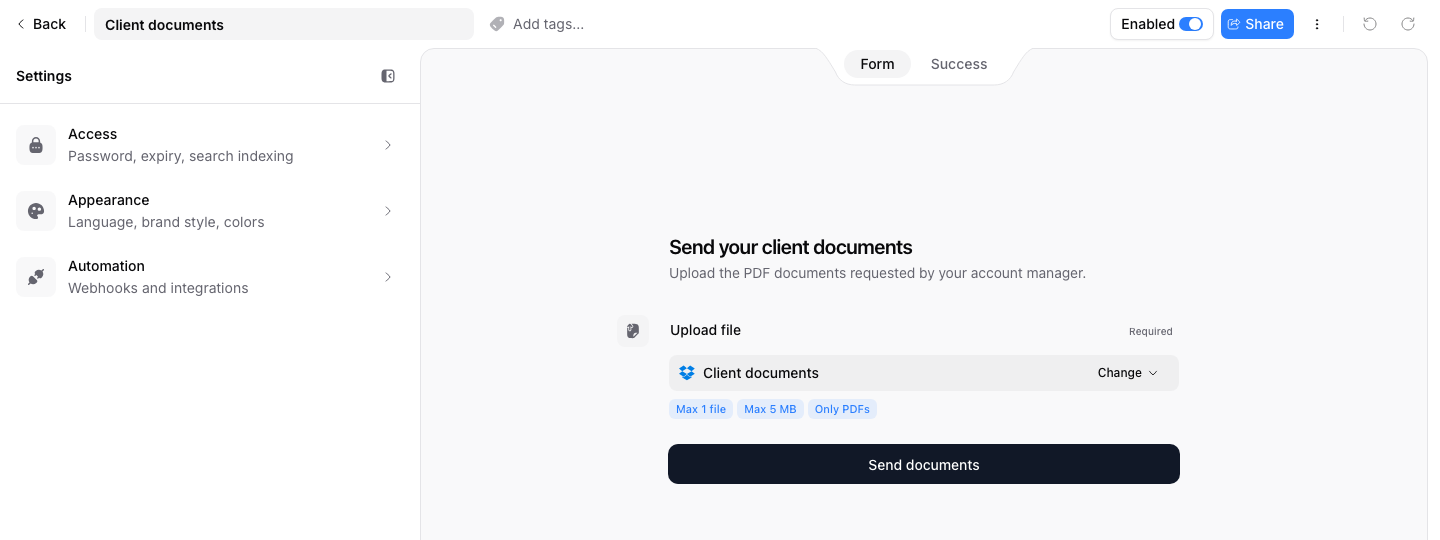
Build and reuse requests
- Create an upload page: start a request, choose storage, enable it, and test delivery.
- Find and reuse pages: templates, search, duplication, and archived pages.
- Add questions and file requirements: sender identity, required answers, file types, counts, and sizes.
- Show and require fields conditionally: ask follow-up questions based on earlier answers.
Control how uploaders see the page
Use branding and success messages for the page’s language, appearance, and completion instructions. Use Access settings for password protection, expiration, and search indexing.
Enable or disable the page to control collection. Save changes on an enabled page updates its live configuration. Disable it first to prepare changes while submissions are closed.
Share and test
Copy the public link or QR code from Share. Use the embed guide to place the request on a website. Uploaders do not need a PigeonFiles account.
Preview the questions, then submit a small file through the public link. Check the file in storage and the submission record. Preview alone does not prove storage delivery.
For questions from someone sending files, share Upload files through a request link or Fix upload problems.